Android
The SDK is delivered in two formats, as
AAR file, embedding an AndroidManifest.xml file, so less information is required in the AndroidManifest.xml of the application
Local Maven repository with transitive dependencies.
This repository also includes a documentation jar file to view the technical documentation in Android Studio (to be used in conjunction with the repository)
AAR artifact-based integration
To integrate the Notification SDK Client into your Android project via aar file
Copy NotificationSDKClient.aar from the OneSpan Mobile Security Suite package to your project.
Add the Google Play services project as a dependent library.
For more information, refer to the Firebase documentation.
Configure your manifest to be able to receive a notification.
<application>
                    <activity android:name="ActivityName">
                    ...
                    <!-- This intent filter is used to select the activity that
                    will be launched when the user clicks on a notification.
                    The MIME type is customizable. Make sure it matches the
                    “notificationMIMEType” property in the assets/onespan-notifications.properties
                    file. -->
                    <intent-filter>
                    <action android:name="android.intent.action.VIEW"/>
                    <category android:name= "android.intent.category.DEFAULT"/>
                    <data android:mimeType= "application/vnd.com.vasco.notification.NOTIFICATION_ ACTIVITY"/>
                    </intent-filter>
                    </activity>
                    <meta-data android:name="com.google.android.gms.version" android:value="@integer/google_play_services_version"/>
                    </application>
If you target Android 13, you need to declare the POST_NOTIFICATIONS permission in the AndroidManifest.xml of the application.
Create a onespan-notifications.properties file in the assets folder.
This file must contain several properties, each of which has a key/value pair. The key and value are separated by an equal sign (=). For example:
notificationMIMEType=application/vnd.com.vasco.notification.NOTIFICATION_ACTIVITYThe following table lists the mandatory and optional properties to include in the file:
Key
Mandatory
Description
notificationMIMEType✓
Mime type that is used when a notification is received. This must be the same value as the one specified in the manifest.
notificationIconName✓
Icon displayed in the notification center when a notification is received. This icon file must be in a .png format and must be added as a resource.
notificationIconNameLollipopIcon displayed in the notification center when a notification is received. This property is used on Android 5.0 and later. The icon can only be white and transparent, must be in a .png format and must be added as a resource.
notificationIconBackgroundColorLollipopBackground color used for the notification icon when a notification is displayed on the notification drawer. This property is used on Android 5.0 and later. Supported formats are:
#RRGGBB
#AARRGGBB,
or you can use the following color terms:
red,blue,green,black,white,gray,cyan,magenta,yellow,lightgray,darkgray,grey,lightgrey,darkgrey,aqua,fuchsia,lime,maroon,navy,olive,purple,silver,teal.
notificationOpenInForegroundOptional Boolean switching behavior of the notifications that are received while the application is in foreground. Default value: false.
notificationTargetClassDefines the class to use as the target for the notification.
notificationMIMEType=application/vnd.com.vasco.notification.NOTIFICATION_ACTIVITY
                    notificationIconName=ic_notification.png
                    notificationIconNameLollipop=ic_notification_lollipop.png
                    notificationIconBackgroundColorLollipop=#848484
                    notificationOpenInForeground=true
                    notificationTargetClass=com.vasco.digipass.sdk.utils.notification.client.sample.NotificationSDKClientSampleActivity
Retrieve google-services.json from your Firebase project. This file is mandatory to enable FCM from your Android project. For more information about obtaining this file, see Enable Push Notification in a Google project. This file must be downloaded from your Firebase project:
Go to Console -> Select Project -> Project Settings and open the General tab.
Retrieve google-services.json and replace the .json file inside the app sample project repository.
You are now ready to use the Notification SDK Client.
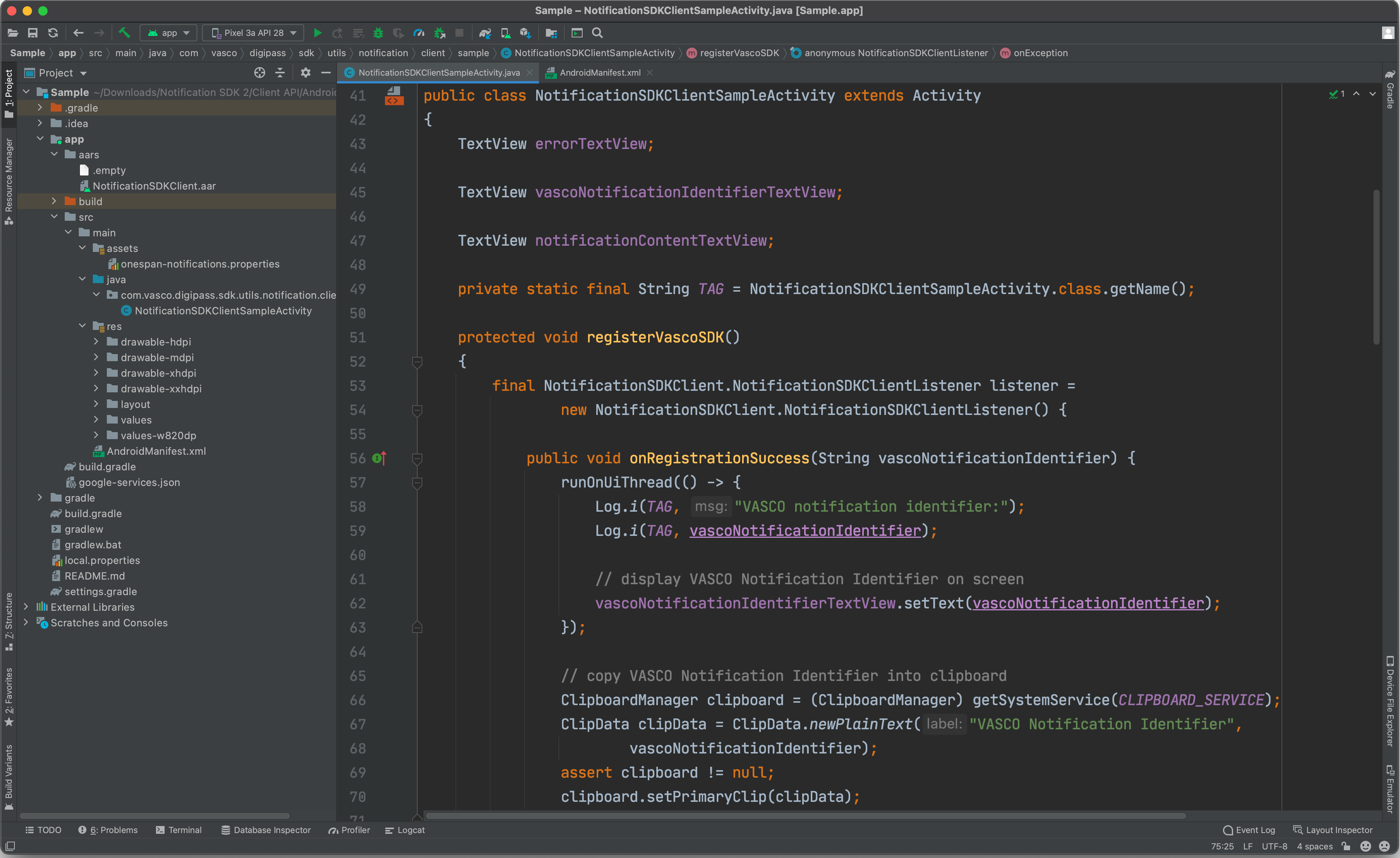
Integrate the Notification SDK Client (Android)
Maven-based integration
The SDK artifact is also delivered as a local Maven repository with transitive dependencies, and the package includes a documentation jar file to view the technical documentation in Android Studio (to be used in conjunction with the Maven repository).
To integrate the SDK via maven repository:
Copy the maven folder from the published artifacts to the root folder of your application.
Define the dependency in your build.gradle file:
implementation 'com.onespan:sdk_notification_client_android:+'.Comment out any existing definitions, for example:
implementation(name: 'NotificationSDKClient', ext: 'aar').
Threading
The following methods need to be called on a background thread:
registerNotificationServiceisVASCONotification
iOS
To integrate the Notification SDK Client into your iOS project
Link MSSNotificationClient.xcframework from the OneSpan Mobile Security Suite package to your Xcode project (linked framework and libraries).
In your .plist file, add the App downloads content in response to push notifications mode (raw value: <remote-notification>) to the list associated with the Required background modes property (raw value: UIBackGroundModes).
Make sure your application bundle identifier matches that in the provisioning profile that has been created for this specific application with the Remote notifications capability.
You are now ready to use the Notification SDK Client.
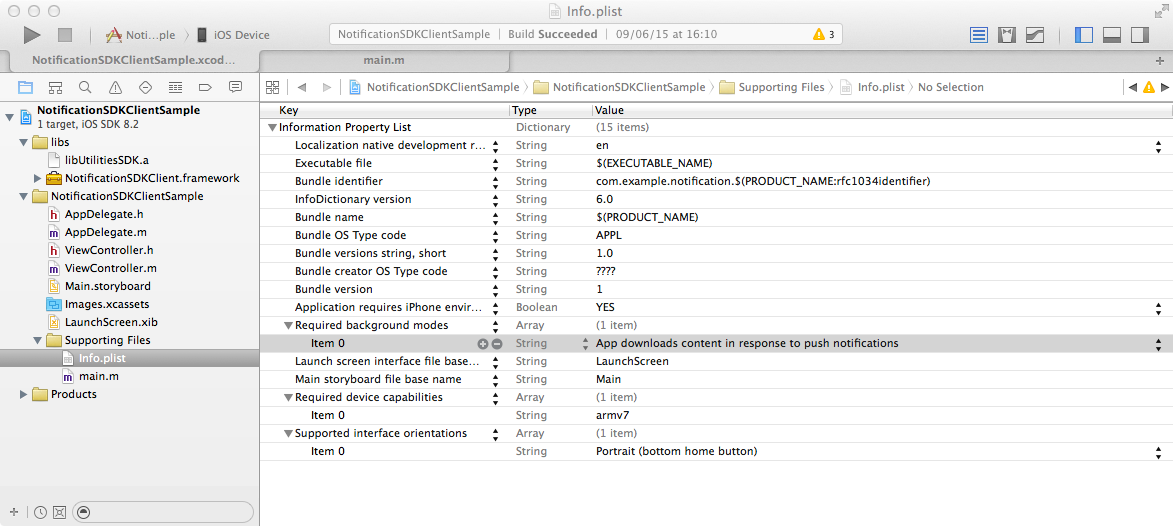
Integrate the Notification SDK Client (iOS)
API reference documentation and sample applications
To learn more about the public APIs and their functions, exceptions, and error codes, refer to the technical documentation that is included in the product package for each SDK and each platform. In the product package, you can also find the sample applications provided for each platform to see examples of how the SDKs can be used.
These sample apps are intended only to demonstrate basic scenarios and SDK usage. They are not designed to be copied directly into production projects!