Client certificates are used when connecting to secure remote services to verify and confirm the identity of those remote services (authenticity), typically by verifying the client certificates using trusted root CAs.
OneSpan Authentication Server Appliance uses CA certificates/bundles to verify client certificates of the following components:
SEAL communicator
SOAP communicator
IBM Security Directory Server back-end servers
Active Directory (AD) back-end servers
Live audit
Message Delivery Component (MDC) SMS servers
Message Delivery Component (MDC) SMPP servers
Message Delivery Component (MDC) SMTP servers
Message Delivery Component (MDC) voice servers
Whenever you need to specify a client certificate for one of these components, you select the respective certificate from a list containing all valid and trusted CA certificates imported using the Certificate Management page.
By default, OneSpan Authentication Server Appliance already contains the cURL CA root certificate bundle.
The following procedure describes exemplarily how to change the client certificate for the communicator components.
To select a CA certificate/bundle for a communicator component
Launch the OneSpan Authentication Server Appliance Configuration Tool and enter your credentials (see Accessing OneSpan Authentication Server Appliance Configuration Tool and OneSpan Authentication Server Administration Web Interface).
Select Authentication Server > SEAL Communicator or Authentication Server > SOAP Communicator, depending on the communicator component to configure.
Set Require Client Certificate to Optional, Required, or Required-signed address only.
Select a CA certificate/bundle from the CA Certificate Store list.
The CA Certificate Store list contains all valid and trusted CA certificates you have previously created/imported using the Certificate Management page (see Managing certificates).
If required, select Re-Verify on Re-Negotiation.
This option should be used sparingly and only if really necessary. It performs the SSL handshake each time you reconnect. If you reconnect each time you send a message, you should not select this option as it will decrease the performance.
If you are using SEAL, select Automatically Trust Certificates to trust server certificates automatically.
Click Save to finish.
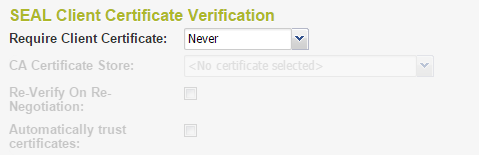
Figure: Client certificate configuration (SEAL)