OneSpan Cloud Authentication now provides the possibility to combine Digipass authentication (mobile authenticator as well as hardware device) with FIDO authentication provided by DigipassONE Authenticate to allow using passwordless FIDO2 credentials called passkeys.
Passkeys
A passkey provides faster, easier, and more secure sign-in for websites and apps. Every passkey is strong and designed with no shared secrets. There are two types of passkeys: device-bound passkeys and synced passkeys. A traditional FIDO credential (device-bound passkey) only works on a single device. A synced passkey can work across all the user's devices. For more information on DigipassONE Authenticate and passkeys, see the DigipassONE Authenticate product documentation.
This integration supports users to register a passkey following a successful Digipass authentication where a proof of authentication in the form of a JSON Web Token (JWT) is used to authorize the registration.
FIDO2 registration after successful Digipass authentication
After the user successfully authenticated with their Digipass authenticator, either via mobile app or via web browser, they can register for a FIDO2 passkey through DigipassONE Authenticate. This comes in 3 scenarios:
Scenario 1: FIDO2 registration following a successful Digipass authentication in a mobile app
Scenario 2: FIDO2 registration following a successful Digipass authentication using orchestration in a mobile app
Scenario 3: FIDO2 registration following a successful Digipass authentication via browser
The result of all three scenarios is that the user is successfully authenticated with Digipass authentication, and a new FIDO2 credential is registered and associated with the user's account for future passwordless authentication.
Scenario 1: FIDO2 registration following successful Digipass authentication in mobile app
The following is the FIDO2 registration sequence after the user successfully authenticated with their Digipass authenticator in the mobile app.
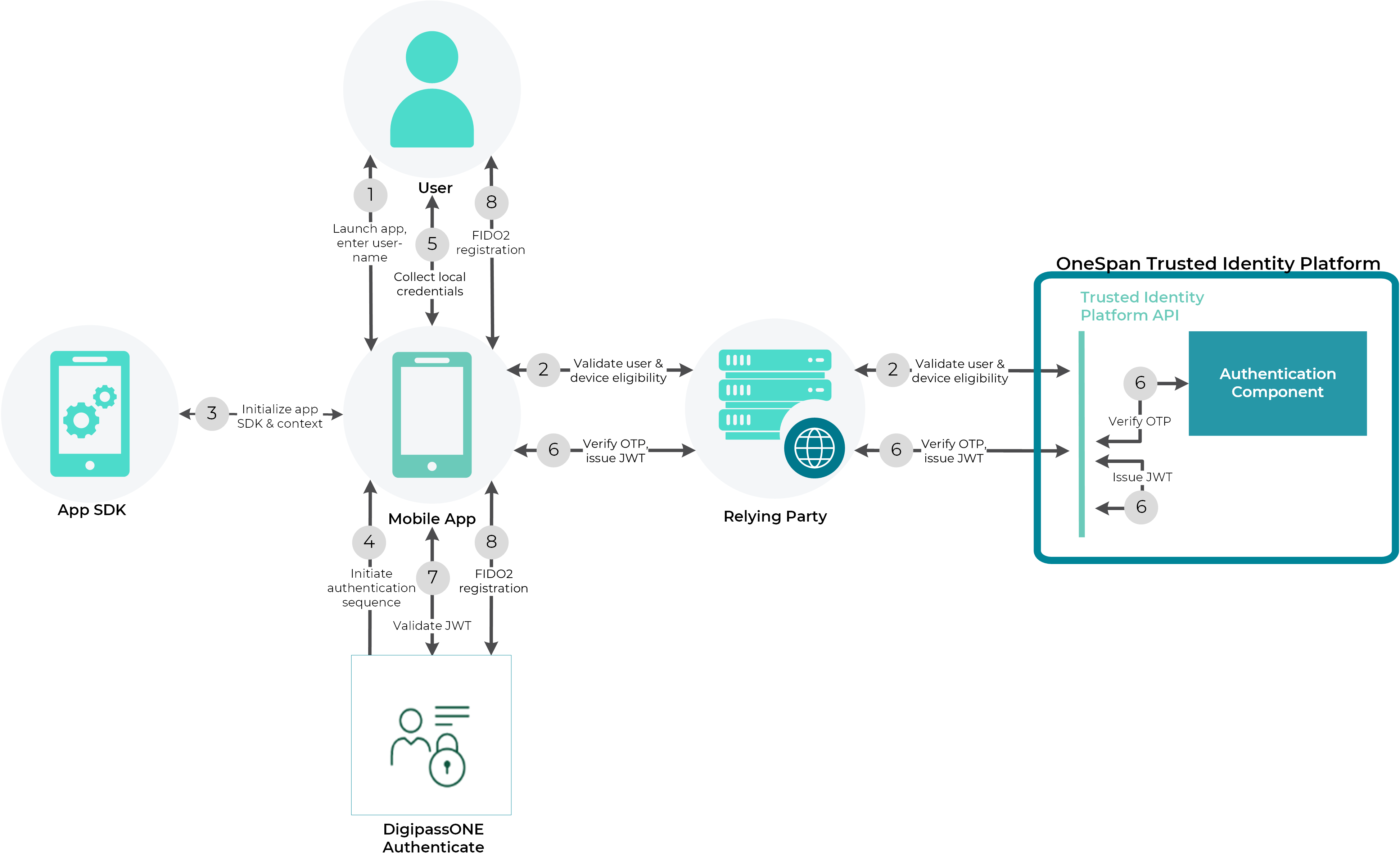
Sequence of a FIDO2 registration via mobile app with successful Digipass authentication
Launch app & enter username.
The user launches the mobile app and enters their username in the login screen.
Validate user & device eligibility.
Validation of user and device eligibility, and local Digipass activation: the mobile app, relying party, and OneSpan Cloud Authentication validate that the user exists in this tenant, has their Digipass authenticator activated in the mobile app, and that the app is successfully registered.
Initialize App SDK and authentication context.
During the initialization of the App SDK, the mobile app adds the user name and context variable, and adds a suggestion to register a FIDO2 authenticator once the user successfully authenticated.
Initiate the authentication sequence with DigipassONE Authentication.
The mobile app initiates sign-in for the user with DigipassONE Authenticate. DigipassONE Authenticate identifies and evaluates the applicable adaptive rule set, using the context, and returns an authentication sequence to the mobile app with Digipass authentication as only option.
Collect local credentials.
The mobile app initiates Digipass local authentication, prompts the user to enter a PIN, validates the PIN entered by the user, and generates a one-time password (OTP).
Verify OTP, issue JSON Web Token (JWT).
OTP-based user authentication with OneSpan Cloud Authentication and JWT issuance: Upon request from the mobile app, the relying party authenticates the user with OTP to OneSpan Cloud Authentication. The Authentication component validates the username and OTP. OneSpan Cloud Authentication generates a JSON Web Token (JWT) and returns it to the relying party which forwards it to the mobile app.
Validate JWT.
The mobile app passes the JWT to DigipassONE Authenticate which validates the JWT and extracts the username from the ‘sub’ claim.
FIDO2 registration.
FIDO2 credential registration completion: DigipassONE Authenticate requests FIDO2 registration from the mobile app which interacts with the user to perform FIDO2 registration and then returns the FIDO2 registration response to DigipassONE Authenticate. DigipassONE Authenticate processes the response, registers the FIDO2 credential for this user, and confirms the successful FIDO2 registration to the mobile app.
Scenario 2: FIDO2 registration after successful Digipass authentication using orchestration
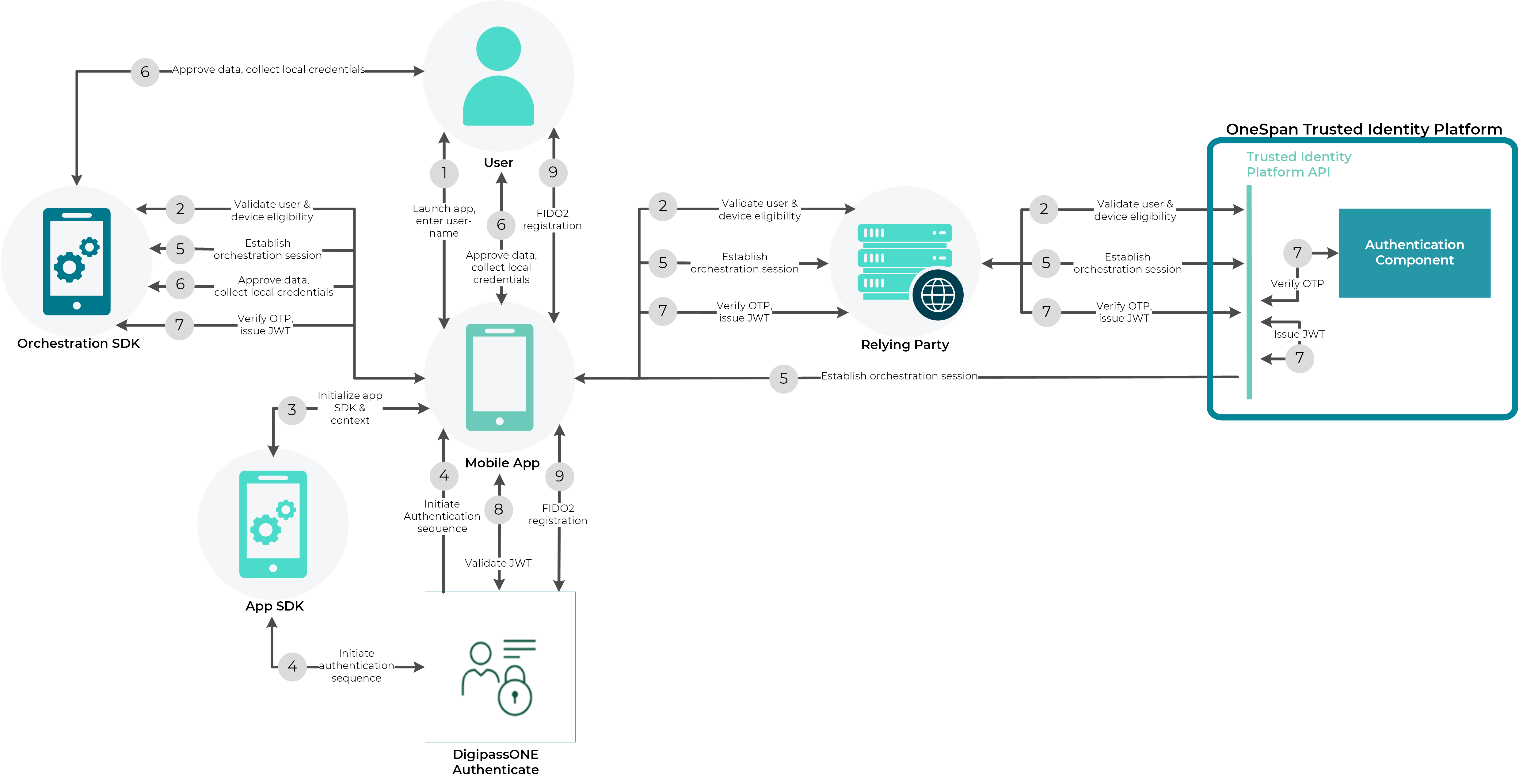
Sequence of a FIDO2 registration via mobile app and the Orchestration SDK via successful Digipass authentication
Launch app & enter username.
The user launches the mobile app and enters their username in the login screen.
Validate user & device eligibility.
Validation of user and device eligibility, and local Digipass activation: the mobile app, Orchestration SDK, relying party, and OneSpan Cloud Authentication validate that the user exists in this tenant, has their Digipass authenticator activated in the mobile app, and that the app is successfully registered.
Initialize App SDK and authentication context.
During the initialization of the App SDK, the mobile app and the App SDK initialize the process with the username and context variable and add a suggestion to register a FIDO2 authenticator once the user successfully authenticated.
Initiate the authentication sequence with DigipassONE Authentication.
The mobile app and App SDK initiate sign-in for the user with DigipassONE Authenticate. DigipassONE Authenticate identifies and evaluates the applicable adaptive rule set, using the context, and returns an authentication sequence to the mobile app with Digipass authentication as only option.
Establish orchestration session.
The mobile app requests the relying party to log in the user. The relying party forwards the request to OneSpan Cloud Authentication which instructs the mobile app to start remote authentication via an orchestration command. The Orchestration SDK, the mobile app, the relying party and OneSpan Cloud authentication process the remote authentication, and the Orchestration SDK and the mobile app check the session status.
Approve data, collect local credentials.
The mobile app displays the login data to the user user for approval. The user approves the data, and the mobile app initiates Digipass local authentication via the Orchestration SDK. It triggers user authentication via biometric authentication or PIN entry.
Verify OTP, issue JSON Web Token (JWT).
OTP-based user authentication with OneSpan Cloud Authentication and JWT issuance: The mobile app sends an orchestration command for user authentication via OTP to the relying party which authenticates the user with the OTP to OneSpan Cloud Authentication. The Authentication component validates the username and OTP. OneSpan Cloud Authentication generates a JSON Web Token (JWT) and communicates it via the established orchestration session and via the relying party back to the Orchestration SDK in the mobile app.
Validate JWT.
The mobile app passes the JWT to DigipassONE Authenticate which validates the JWT and extracts the username from the ‘sub’ claim.
FIDO2 registration.
FIDO2 credential registration completion: DigipassONE Authenticate requests FIDO2 registration from the mobile app which interacts with the user to perform FIDO2 registration and then returns the FIDO2 registration response to DigipassONE Authenticate. DigipassONE Authenticate processes the response, registers the FIDO2 credential for this user, and confirms the successful FIDO2 registration to the mobile app.
Scenario 3: FIDO2 registration following successful Digipass authentication in browser
The following is the FIDO2 registration sequence after the user successfully authenticated with their Digipass authenticator in the browser.
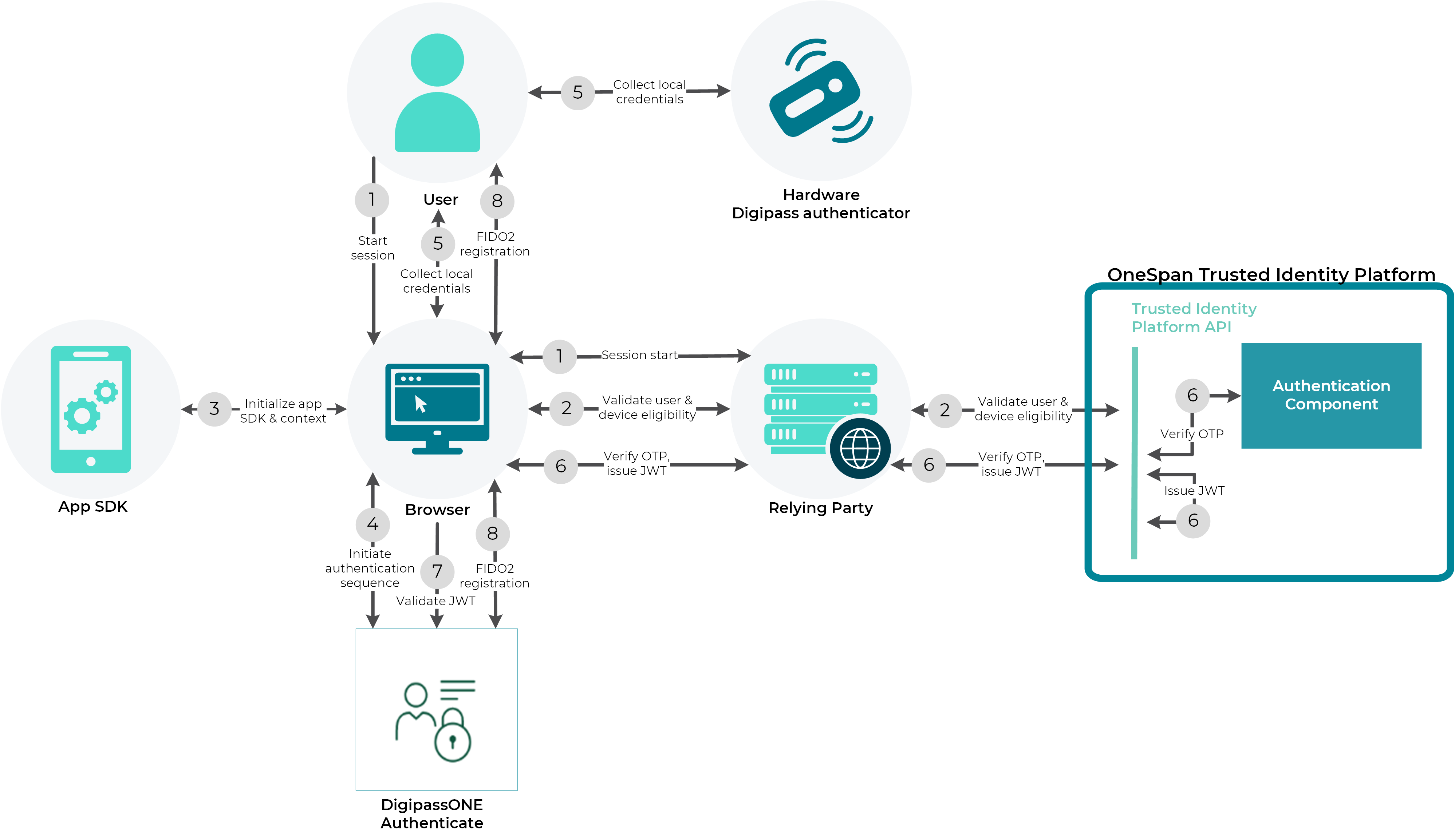
Sequence of a FIDO2 registration via browser with successful Digipass authentication
Start session.
The browser sends a request to login to the relying party which serves the login page, and the user enters their username in the login screen.
Validate user & device eligibility.
Validation of user and device eligibility, and local Digipass activation: the browser, relying party, and OneSpan Cloud Authentication validate that the user exists and can perform Digipass-based local authentication in this tenant, query and list the assigned Digipass authenticator(s) of the user and verify if the assigned authenticator(s) support Digipass local authentication.
Initialize App SDK and authentication context.
During the initialization of the App SDK, the browser adds the user name and context variable, and adds a suggestion to register a FIDO2 authenticator once the user successfully authenticated.
Initiate the authentication sequence with DigipassONE Authentication.
The browser initiates sign-in for the user with DigipassONE Authenticate. DigipassONE Authenticate identifies and evaluates the applicable adaptive rule set, using the context, and returns an authentication sequence to the browser with Digipass authentication as only option.
Collect local credentials.
The browser displays the login page to collect input for Digipass local authentication. The user obtains a one-time password (OTP) from their Digipass hardware authenticator and enters this OTP in the browser window.
Verify OTP, issue JSON Web Token (JWT).
OTP-based user authentication with OneSpan Cloud Authentication and JWT issuance: The browser authenticates the user to the relying party using the OTP, and the relying party authenticates the user with the OTP to OneSpan Cloud Authentication. The Authentication component validates the username and OTP. OneSpan Cloud Authentication generates a JSON Web Token (JWT) and returns it to the relying party which forwards it to the browser.
Validate JWT.
The browser passes the JWT to DigipassONE Authenticate which validates the JWT and extracts the username from the ‘sub’ claim.
FIDO2 registration.
FIDO2 credential registration completion: DigipassONE Authenticate requests FIDO2 registration from the browser which interacts with the user to perform FIDO2 registration and then returns the FIDO2 registration response to DigipassONE Authenticate. DigipassONE Authenticate processes the response, registers the FIDO2 credential for this user, and confirms the successful FIDO2 registration to the browser.