Before you can install your OneSpan Authentication Server Virtual Appliance instance, you need to create a new virtual machine (VM) with the Citrix XenCenter Client application.
Creating a new virtual machine
To create a new virtual machine (VM)
- Start Citrix XenCenter Client.
Select VM > New VM.
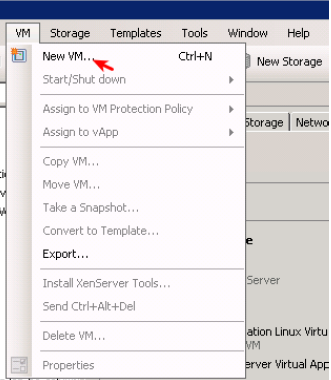
Figure: Create a new virtual machine
In the Template tab, select Other install media, and click Next.
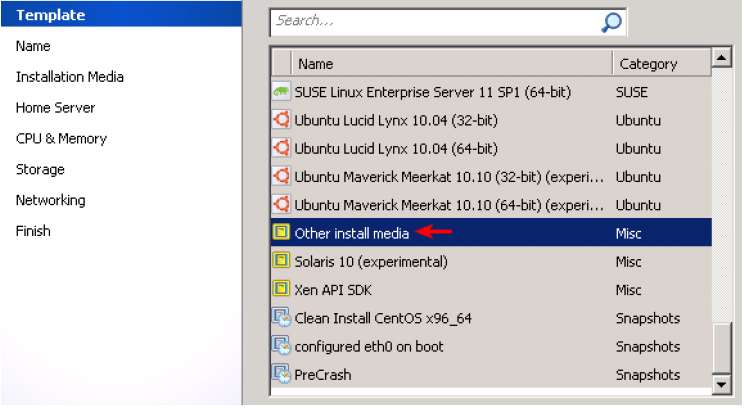
Figure: VM template selection
Enter a name for the new VM. The description is optional. Click Next to continue.
Select Install from ISO library or DVD drive and select the OneSpan Authentication Server Virtual Appliance ISO installation image file.
Select Place the VM on this server. Make sure that there is enough disk space available, otherwise the installation will fail.
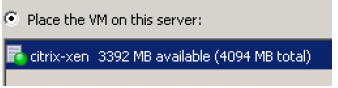
Figure: Select the installation target
Set the number of virtual CPUs and the amount of RAM, and click Next.
- Number of vCPUs: This is determined by your license.
- Memory: The absolute minimum is 1,024 MB. We recommend 2,048 MB or even 4,096 MB for production use.
- Select Use these virtual disks and click Add to configure the storage of the virtual machine.
Enter a name for the new virtual disk. Make sure that the size is at least 32 GB. We recommend 100 GB for production use.
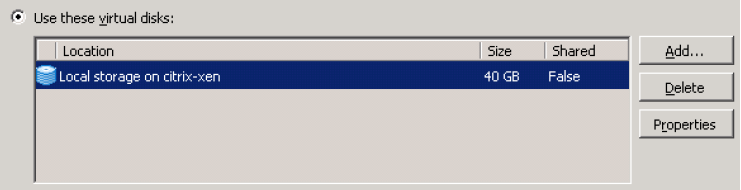
Figure: Storage configuration
Use auto-generated MAC for your network device.

Figure: Network configuration
- Finish the setup. Select Start the new VM automatically to load and power up the virtual machine on startup.