Laserfiche is the world's leading software for content management, business process automation, and productivity-boosting data analytics.
OneSpan Sign for Laserfiche Cloud enables users to quickly obtain secure, legal, and compliant e-signatures for their documents directly from Laserfiche. This application allows customers to:
Initiate e-signatures directly from Laserfiche Cloud
Authenticate the signer's identity using multiple methods
Transform any mobile device into a signature capture pad
Encrypt each person's signature using advanced tamper-proof, digital signature technology
Demonstrate compliance with comprehensive audit trails that show who signed, in what order, when, and how
This user guide covers how to use the OneSpan Sign for Laserfiche Cloud workflow and explains in detail the steps that should be followed to obtain secure signatures within Laserfiche Cloud workflow.
Before you begin: Ensure you have completed the installation steps found in the OneSpan Sign for Laserfiche Cloud Installation and Configuration Guide included in the downloaded zip file.
Terminology
Document Package / Transaction — An object within OneSpan Sign that holds the content and definitions for all documents and signers. This is the piece that contains all documents sent to the signer to complete.
Placeholder — When you want to use dynamic signer information (e.g., when creating a template), you can use a placeholder signer to define signature and other field locations. All placeholders must be replaced by real signers before a transaction is distributed for signing. All signatures and fields associated with a placeholder will be assigned to the actual signer.
Laserfiche Document — Any electronic document stored in Laserfiche.
Local Document — Any file from the local file system.
Document Extraction — Please see the OneSpan Sign documentation.
Text Tag Extraction — Please see the OneSpan Sign documentation.
Signer Id — Please see the OneSpan Sign documentation.
Placeholder Id — Please see the OneSpan Sign documentation.
Using the OneSpan Sign for Laserfiche Cloud Workflow (Script Rules)
Introduction to OneSpan Sign Script Rules
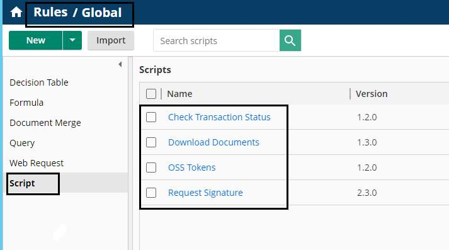
There are four script rules used to obtain signatures, check transaction status, and download documents after signing:
Request Signature
Check Transaction Status
Download Documents
OSS Tokens
After following the installation guide, you will find these four script rules in Laserfiche Cloud Rules under the category named Script.
How to Use Script Rules in a Workflow Definition
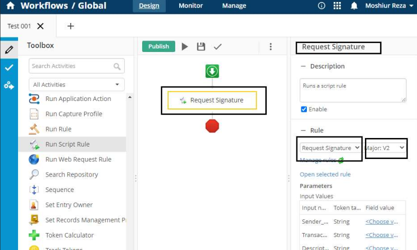
Add a Run Script Rule activity to the workflow designer from the toolbox.
In the right-side property panel, select the desired rule from the Rule dropdown.
Make sure to select the desired version of the rule.
You can rename the activity as desired.
Script Rule Reference
Request Signature
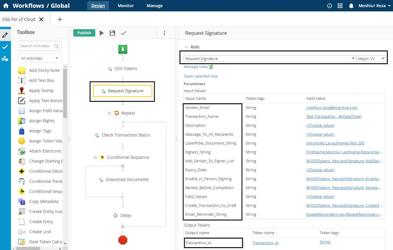
The Request Signature script rule is used to send document(s) for signature. It contains all the settings for creating a transaction and sending document(s) for signing.
Input Parameters
Sender Email
Enter the email address of the sender. This field is mandatory if a default sender is not configured.
Transaction Name
Enter the Transaction Name. This field is mandatory.
Description
Enter the Transaction Description. This field is not mandatory.
Message to All Recipients
Enter a message for all recipients. This field is not mandatory.
Laserfiche Documents String
Enter Laserfiche entry information for the transaction. The entries will be added to the transaction. If the entry has "Layout Information (OneSpan Sign)", the layout will be applied to the document. This field is mandatory.
Sample 1 — Single document by Entry ID:
EntryId:10
Sample 2 — Multiple documents with layouts:
EntryId:7,LayoutName:Layout 1;EntryId:8,LayoutName:Layout 2;EntryId:10
Signers String
Signer information for the transaction. Minimum required fields per signer: FirstName, LastName, Email, and SignerId. This field is mandatory.
Sample 1 — Basic signers:
FirstName:tim,LastName:cook,Email:tim@mailinator.com,SignerId:Signer1;FirstName:Duo,LastName:Dough,Email:duo@mailinator.com,SignerId:Signer2
Sample 2 — With signing order and signer replacement:
FirstName:tim,LastName:cook,Email:tim@mailinator.com,SignerId:Signer1,SignerOrder:1,ChangeSigner:true;FirstName:Duo,LastName:Dough,Email:duo@mailinator.com,SignerId:Signer2,SignerOrder:2,ChangeSigner:false
Sample 3 — With attachment requirements:
FirstName:tim,LastName:cook,Email:tim@mailinator.com,SignerId:Signer4,SignerOrder:4,ChangeSigner:true,AttachmentRequirementName1:passport,AttachmentRequirementDescription1:please add,AttachmentRequirementRequired1:true,AttachmentRequirementName2:certificate,AttachmentRequirementDescription2:not mandatory,AttachmentRequirementRequired2:false;FirstName:Duo,LastName:Dough,Email:duo@mailinator.com,SignerId:Signer5,SignerOrder:5,ChangeSigner:false,AttachmentRequirementName1:ssc transcript,AttachmentRequirementDescription1:no need,AttachmentRequirementRequired1:false,AttachmentRequirementName2:certifi2,AttachmentRequirementDescription2:yes mandatory,AttachmentRequirementRequired2:true
Add Sender to Signer List
Enter yes to add the sender to the signer list (so the sender can also be a signer). Default is no.
Expiry Date
Enter an expiry date for the transaction. This field is not mandatory.
Enable In Person Signing
Configure in-person signing. Allowed values: yes, no. Not mandatory.
Review Before Completion
Configure Review Before Completion. Allowed values: yes, no. Not mandatory.
Field Values
Configure field values. Not mandatory.
Sample:
FieldName:TEXTFIELD10,FieldValue:OneSpan Sign Integration;FieldName:TEXTFIELD20,FieldValue:Laserfiche Workflow
Create Transaction as Draft
The transaction will be created as a draft. You must send it manually from the integration UI or from the OneSpan Sign website. Allowed values: yes, no. Not mandatory.
Email Reminder String
Configure email reminders for signers. Not mandatory.
Parameter | Description | Possible Values |
|---|---|---|
EnableReminders | Enable reminders | yes, no |
RepeatReminder | Send multiple reminders | yes, no |
StartInDaysDelay | Days before first reminder | Numeric |
IntervalInDays | Days between subsequent reminders | Numeric |
RepetitionsCount | Total number of reminders to send | Numeric |
Sample:
EnableReminders:yes,RepeatReminder:yes,StartInDaysDelay:3,IntervalInDays:1,RepetitionsCount:5
Output Parameters (Tokens)
Token | Description |
|---|---|
Transaction_Id | Transaction ID from OneSpan Sign |
Message | Any relevant messages after running the script rule |
Error_Message | Error messages after running the script rule (if any) |
Check Transaction Status
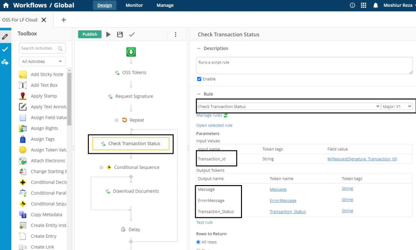
The Check Transaction Status script rule provides the current status of a transaction. It uses the entered Transaction ID to locate the transaction and retrieve its current status. After execution, the output token Transaction_Status carries the result.
Input Parameters
Parameter | Description | Required |
|---|---|---|
Transaction_Id | Transaction ID from OneSpan Sign | Yes |
Output Parameters (Tokens)
Token | Description |
|---|---|
Transaction_Status | Current status of the transaction |
Message | Any relevant messages after running the script rule |
Error_Message | Error messages after running the script rule (if any) |
Download Documents
The Download Documents script rule downloads all files from a completed transaction. It provides options for download location and file naming conventions.
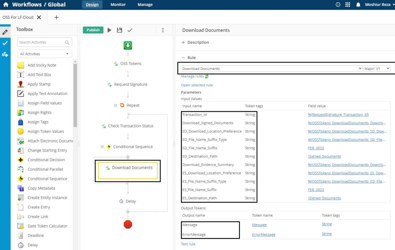
Input Parameters
Transaction Id
The Transaction ID whose documents will be downloaded. This field is mandatory.
Download Signed Documents
Configure whether to download signed documents. Allowed values: yes, no. Not mandatory.
Download Location Preference
Signed documents can be imported back to Laserfiche.
Other Location (value: 3)
Signed documents are downloaded to a user-defined location. A destination path must be selected. File Name Suffix Type is not required. Auto-renaming is enabled. Use the OSS_Tokens output parameter DownloadDocuments_SD_DownloadLocationPreference_OtherLocation to fill this value.
Destination Path
Enter the destination path where signed documents will be downloaded.
File Name Suffix Type
Choose one of the following suffix options for signed documents:
Option | Description |
|---|---|
No Suffix | Leave the dropdown as "Select" — no suffix is added |
Package Id | Package ID appended with an underscore |
Timestamp | Timestamp appended with an underscore |
Manual | User-defined suffix (max 50 characters) |
Download Evidence Summary
Configure whether to download the evidence summary. Allowed values: yes, no. Not mandatory.
Download Location Preference for Evidence Summary
Same options as for signed documents.
Other Location (value: 3)
Use OSS_Tokens output parameter DownloadDocuments_ES_DownloadLocationPreference_OtherLocation.
Destination Path (Evidence Summary)
Enter the destination path where the evidence summary will be downloaded.
File Name Suffix Type (Evidence Summary)
Same four options as for signed documents (No Suffix, Package Id, Timestamp, Manual).
Output Parameters (Tokens)
Token | Description |
|---|---|
Message | Any relevant messages after running the script rule |
Error_Message | Error messages after running the script rule (if any) |
OSS Tokens
The OSS Tokens script rule provides predefined output parameters to help populate the input fields of the Request Signature and Download Documents script rules. This rule has no input parameters.
Naming Convention
ScriptRuleName_InputParameterName_PossibleValue
Example: RequestSignature_AddSenderToSignerList_Yes
ScriptRuleName_RelevantGroupName_InputParameterName_PossibleValue
Example: DownloadDocuments_SD_DownloadLocationPreference_OtherLocation
Output Parameters (Tokens)
Token |
|---|
RequestSignature_AddSenderToSignerList_Yes |
RequestSignature_AddSenderToSignerList_No |
RequestSignature_EnableInPersonSigning_Yes |
RequestSignature_EnableInPersonSigning_No |
RequestSignature_ReviewBeforeCompletion_Yes |
RequestSignature_ReviewBeforeCompletion_No |
RequestSignature_CreateTransactionAsDraft_Yes |
RequestSignature_CreateTransactionAsDraft_No |
DownloadDocuments_DownloadSignedDocuments_Yes |
DownloadDocuments_DownloadSignedDocuments_No |
DownloadDocuments_SD_DownloadLocationPreference_OtherLocation |
DownloadDocuments_SD_FileNameSuffixType_PackageId |
DownloadDocuments_SD_FileNameSuffixType_Timestamp |
DownloadDocuments_SD_FileNameSuffixType_EnterManual |
DownloadDocuments_DownloadEvidenceSummary_Yes |
DownloadDocuments_DownloadEvidenceSummary_No |
DownloadDocuments_ES_DownloadLocationPreference_OtherLocation |
DownloadDocuments_ED_FileNameSuffixType_PackageId |
DownloadDocuments_ED_FileNameSuffixType_Timestamp |
DownloadDocuments_ED_FileNameSuffixType_EnterManual |