OneSpan Sign for Laserfiche Workflow allows you to automate e-signature requests directly within Laserfiche Workflow processes. With this integration you can:
Initiate e-signatures directly from a Laserfiche workflow
Authenticate signer identity using multiple methods
Encrypt signatures using advanced tamper-proof digital signature technology
Demonstrate compliance with comprehensive audit trails
Before you begin: Complete all steps in the Installation and Configuration Guide, including the Workflow-specific configuration steps, before using this guide.
Terminology
Term | Definition |
|---|---|
Transaction / Document Package | An object in OneSpan Sign that holds all documents and signer definitions for a signing session. |
Template | A reusable Document Package with pre-defined documents and signer placeholders. |
Placeholder | A stand-in signer in a template. Must be replaced by a real signer before the transaction is sent. |
Laserfiche Document | Any electronic document stored in Laserfiche. |
Local Document | Any file from the local file system on the workflow server. |
Signer Id / Placeholder Id | An identifier linking a signer to signature fields when using Document Extraction or Text Tag Extraction. |
OneSpan Sign Custom Activities
After installation, three custom activities are available in the Laserfiche Workflow Designer Toolbox under the OneSpan Sign category:
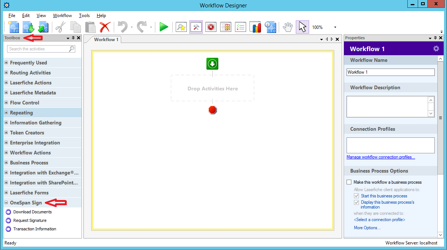
Request Signature
Creates a transaction in OneSpan Sign and sends document(s) for signing. Contains all settings for configuring the transaction, signers, and documents.
Transaction Information
Checks and retrieves the current status of a transaction, making that information available to downstream workflow activities.
Download Documents
Downloads all files from a completed transaction. Configures where signed documents and evidence summaries are saved and how files are named.
Request Signature Activity
Drag the Request Signature activity into your workflow. The Properties panel on the right contains three sections of configuration.
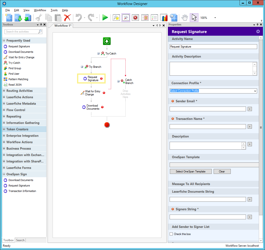
General Properties
Property | Required | Description |
|---|---|---|
Connection Profile | Required | Select a connection profile created in the Integration UI in Laserfiche Web Client. |
Sender Email | Required | Email address of the transaction sender. |
Transaction Name | Required | Name for the transaction. Supports Laserfiche token input. |
Description | Optional | Additional description. Supports token input. |
OneSpan Template | Optional | Select an existing OneSpan Sign template to base the transaction on. |
Message to All Recipients | Optional | A message sent to all signers. Supports token input. |
Laserfiche Documents String | Optional | Specifies Laserfiche entries to include as documents. Supports token input. See format below. |
Signers String | Required | Defines all signers for the transaction. Supports token input. See format below. *At least one signer is typically required. |
Add Sender to Signer List | Optional | Check to include the sender as a signer. Unchecked by default. |
Laserfiche Documents String Format
Use the entry ID and optionally a layout name. Separate multiple entries with semicolons:
# Single document
EntryId:10
# Multiple documents with layouts
EntryId:7,LayoutName:Layout 1;EntryId:8,LayoutName:Layout 2;EntryId:10
Signers String Format
Minimum required fields per signer: FirstName, LastName, Email, SignerId. Separate multiple signers with semicolons:
# Minimal format
FirstName:tim,LastName:cook,Email:tim@example.com,SignerId:Signer1;FirstName:Duo,LastName:Dough,Email:duo@example.com,SignerId:Signer2
# With signing order and change-signer permission
FirstName:tim,LastName:cook,Email:tim@example.com,SignerId:Signer1,SignerOrder:1,ChangeSigner:true;FirstName:Duo,LastName:Dough,Email:duo@example.com,SignerId:Signer2,SignerOrder:2,ChangeSigner:false
# With attachment requirements
FirstName:tim,LastName:cook,Email:tim@example.com,SignerId:Signer4,SignerOrder:4,ChangeSigner:true,AttachmentRequirementName1:passport,AttachmentRequirementDescription1:please add,AttachmentRequirementRequired1:true,AttachmentRequirementName2:certificate,AttachmentRequirementDescription2:not mandatory,AttachmentRequirementRequired2:false
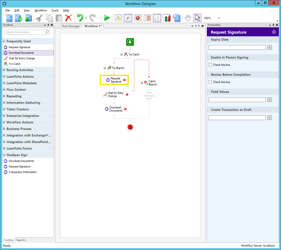
Advanced Properties
Property | Required | Description |
|---|---|---|
Expiry Date | Optional | Date after which the transaction expires. |
Language | Optional | Language for all transaction communications and the signing UI. |
Enable In Person Signing | Optional | Enables in-person signing mode. |
Review Before Completion | Optional | Requires a review step before the transaction is completed. |
Field Values | Optional | Pre-populates form field values in the document. Supports token input. See format below. |
Create Transaction as Draft | Optional | Creates the transaction in Draft status — it must be sent manually from the integration UI or the OneSpan Sign website. |
Field Values Format
Semicolon-separated list of field name/value pairs:
FieldName:TEXTFIELD10,FieldValue:OneSpan Sign Integration;FieldName:TEXTFIELD20,FieldValue:Laserfiche Workflow
Local Documents
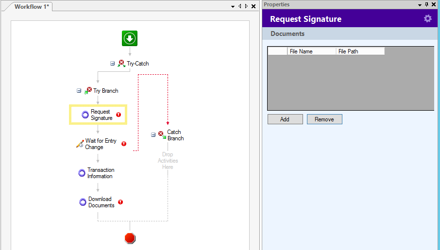
The Documents tab of the Request Signature activity lets you add files from the local file system on the workflow server:
Click Add.
Enter the File Name and File Path for each document.
Use Remove to delete entries from the list.
Note: Documents sourced from the local file system are always downloaded to the Default Download Location, regardless of download preference settings.
Transaction Information Activity
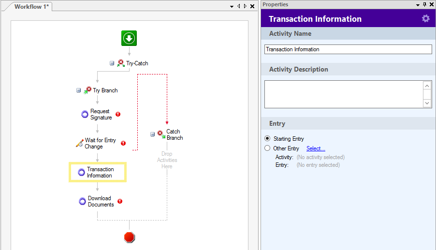
The Transaction Information activity retrieves the current status and details of a transaction from OneSpan Sign, making that data available to downstream activities.
Entry Configuration
In the Properties panel, under Entry, choose which Laserfiche entry the activity uses to look up the transaction:
Option | Description |
|---|---|
Starting Entry | Uses the workflow's starting entry. |
Other Entry | Select a specific activity and entry output to use. |
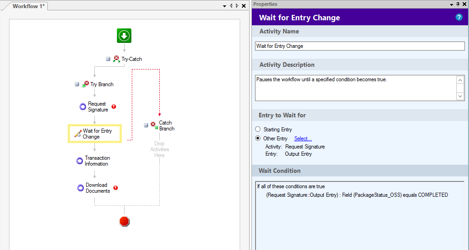
Typical workflow pattern: Use a Wait for Entry Change activity after Request Signature, configured to wait until the PackageStatus_OSS field on the output entry equals COMPLETED. Then run Transaction Information, followed by Download Documents.
Download Documents Activity
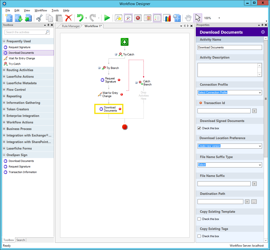
The Download Documents activity downloads all files from a completed transaction.
Required Properties
Property | Description |
|---|---|
Connection Profile | Select the connection profile used by the original Request Signature activity. |
Transaction Id | The ID of the transaction whose documents should be downloaded. Supports token input — typically fed from the Transaction Information activity output. |
Signed Documents
Check Download Signed Documents to enable. Then choose a Download Location Preference:
Option | Behaviour | Notes |
|---|---|---|
Create New Version | Adds the signed document as a new version of the original Laserfiche entry. | If not under version control, the entry is placed under version control. If locked, download is skipped. Non-PDF files go to the default download location. |
Same Location | Downloads to the same folder as the original file. | A File Name Suffix Type is required to avoid filename conflicts. Auto-rename is enabled. |
Other Location | Downloads to a user-defined Laserfiche folder. | Configure Destination Path by clicking the browse button to select a Laserfiche directory. File Name Suffix Type is optional. |
File Name Suffix Type (Signed Documents)
Option | Result |
|---|---|
Package Id | OSS package ID appended with an underscore. |
Timestamp | Timestamp appended with an underscore. |
Manual | Custom suffix of your choice. Optional, max 50 characters. |
No Suffix (leave as "Select") | No suffix appended. Only valid with Other Location. |
Metadata Carry-over
Option | Description |
|---|---|
Copy Existing Template | Applies the original document's template to the signed document. |
Copy Existing Tags | Copies all tags from the original to the signed document. |
Copy Existing Fields | Copies field values to the signed document. |
Create Link between Original and Signed Documents | Creates a Laserfiche document relationship link. |
Note: Metadata carry-over options do not apply to documents sourced from the local file system.
Evidence Summary
Check Download Evidence Summary to also download the audit evidence summary. Configure the Evidence Summary Download Location Preference — options and suffix types are identical to those for signed documents above. An additional option allows you to create a link between the evidence summary and signed documents.
Main Entry and Triggering the Next Workflow Step
What is the Main Entry?
Every transaction has a main entry — the primary Laserfiche document associated with the transaction:
If a Starting Entry is configured on the Request Signature activity, that entry is the main entry.
If no Starting Entry is set, the first entry in the Laserfiche Documents String is used.
When a transaction is signed and completed, and the OneSpan Sign notification service is triggered, the integration writes the value COMPLETED to the PackageStatus_OSS field on the main entry. This field change can be used to trigger the next workflow step.
Recommended Workflow Pattern
Use a Wait for Entry Change activity after Request Signature to pause the workflow until signing is complete:
Setting | Value |
|---|---|
Entry to Wait for | Other Entry → Activity: Request Signature → Entry: Output Entry |
Wait Condition | Field (PackageStatus_OSS) equals COMPLETED |
Once the condition is met, the workflow proceeds to Transaction Information and then Download Documents.
Recommended activity sequence:
Request Signature
Wait for Entry Change (PackageStatus_OSS = COMPLETED)
Transaction Information
Download Documents