Once an admin has accessed their account and created their first passkey, they can:
Choose an alternative sign in method
Create a new passkey
Set up a new device
They may also rename and delete their passkeys on the Manage Passkeys page.
Accessing the Manage Passkeys page
The Manage Passkeys page can be accessed via the application or portal the user has authenticated into.
In the case of the MAS Portal, clicking the My Profile button will open the user profile which displays:
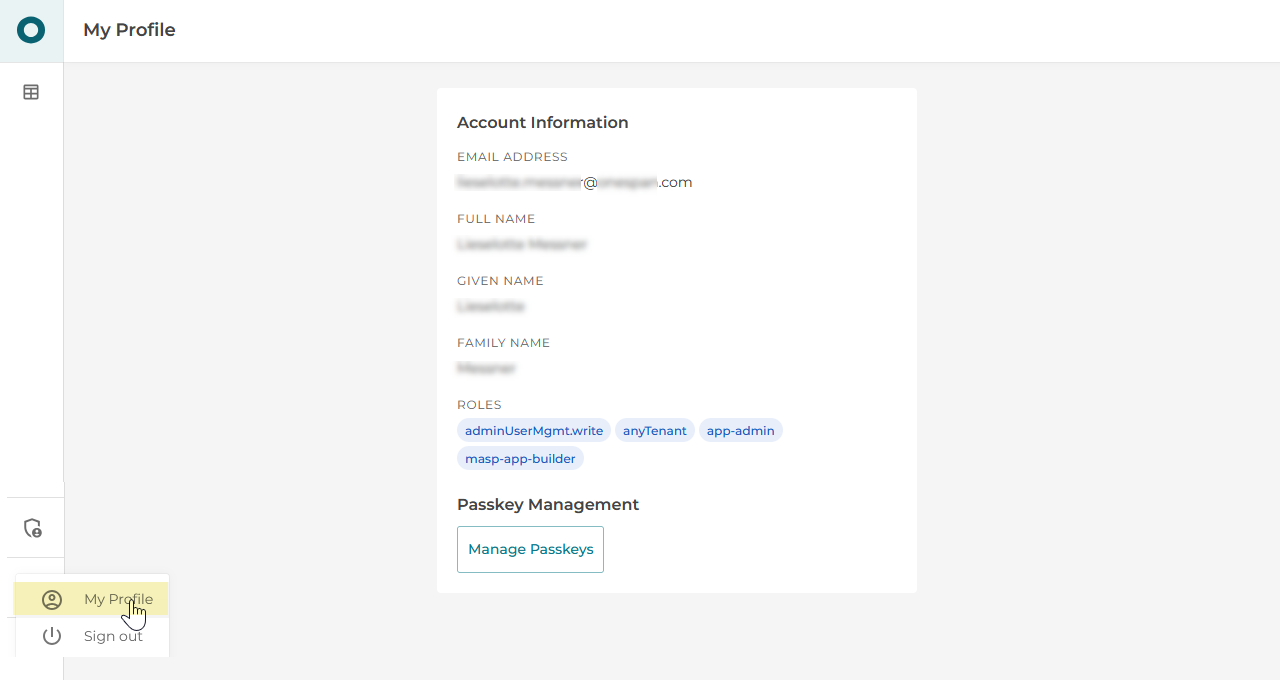
the user’s name and email address
their role(s)
a Manage Passkeys link.
Clicking this link will bring them to the Manage Passkeys page in Central Admin Login.
Passkey management functionality
The Manage Passkeys page enables users to manage their sign in methods and registrations.
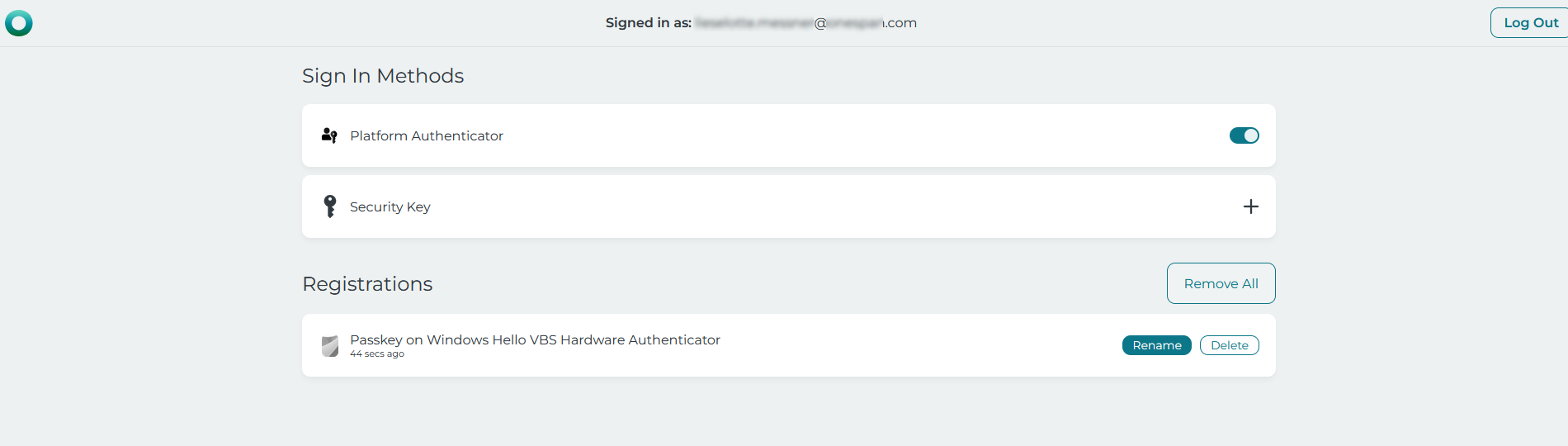
Sign In Methods
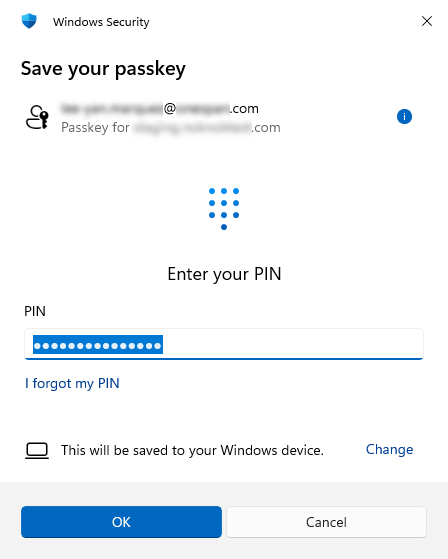
Platform Authenticator
This will be available for users who have Windows Hello set up on their machine.
Note that deactivating this method will remove the associated credential from passkey management. To restore it, ensure that the option is on before following steps to authenticate using your Windows Hello credential.
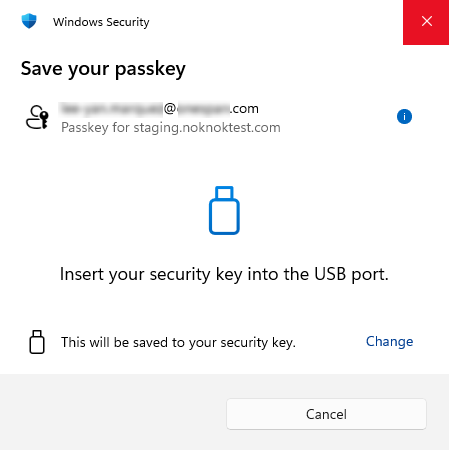
Security Key
This method is available for all users. Click on the plus sign and you will be prompted to insert a passkey device where a passkey can be saved.
Registrations
All credentials associated with your account are listed in the Registrations section where you can:
Rename a credential
Delete a credential
Remove All credentials
Rename a credential
Click on the Rename button to the right of the credential.

This will launch a dialog. Enter a new name in the field provided.
Click Rename.

The new name will now appear.

Delete a credential
Click on the Delete button to the right of the credential.

You will be presented with options to either Delete or Cancel. Click Delete to proceed.

The credential will be removed from the Registrations list.
Remove All credentials
Click the Remove All button on the top right of the Registrations list.

You will be presented with options to either Delete or Cancel. Click Delete to proceed.
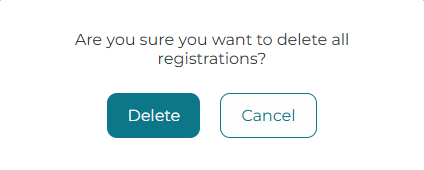
All credentials will be removed from the Registrations list.