Requirements
Component | Requirement |
|---|---|
IDE | |
Computer | Mac OS X 10.12.6 or later |
Device | iPhone 13 or later with iOS 18.7 or later |
Data wallet | OneSpan Wallet |
Other |
|
1 You must provision a unique bundle ID for your version of the iOS Tutorial app. To learn more, see the Apple documentation on App ID Identifiers.
The iOS Tutorial App is included with the DigipassONE App SDK for iOS. It is a simple client application that will teach you how to implement digital credentials by:
Building and deploying a client application.
Connecting and testing a client application.
Below are detailed, step-by-step guides to help you get started:
Install OneSpan Wallet
OneSpan Wallet requires other DigipassONE components to function and should only be used to explore and validate digital credential functionality. It is currently not intended for standalone use.
On your mobile device, open a browser and go to https://testflight.apple.com/join/4Fbgbtyk. You will be presented with two steps.
If you do not yet have TestFlight, proceed with Step 1: Get TestFlight and install the app by clicking View in App Store.
Then, proceed to Step 2: View OneSpan Wallet Beta and click View in TestFlight.
Once OneSpan Wallet is visible, click OPEN.
When prompted, create a 6-digit passcode.
You may also be asked to Enable Face ID. You can choose to enable this or not.
You may also be asked to Allow “OneSpan Wallet” to find devices on local networks? Click Don’t Allow.
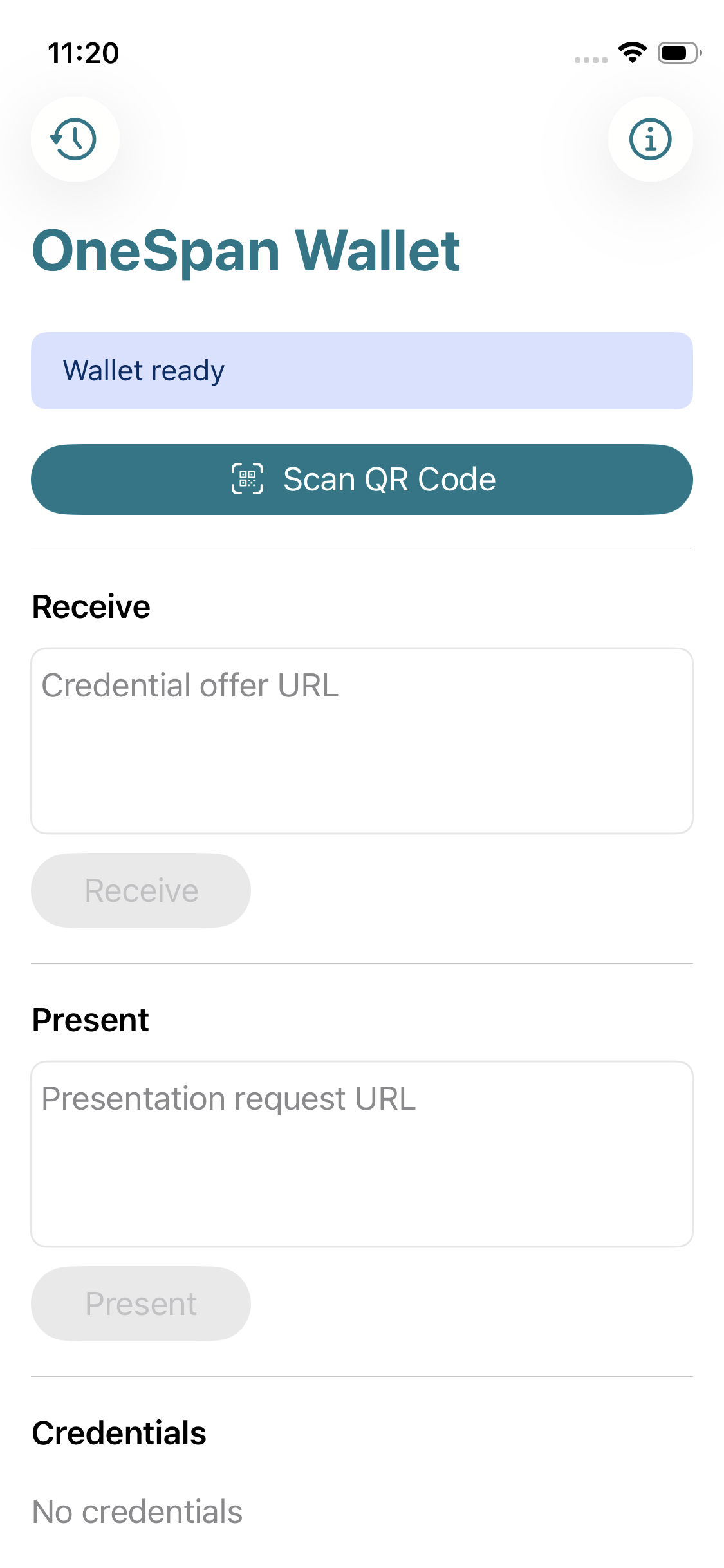
You should see a notification indicating that your wallet is ready.
Download the iOS SDK
Login to the DigipassONE portal.
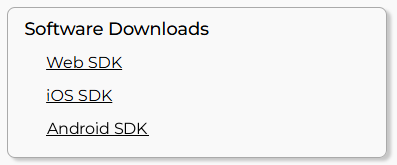
Locate the Software Downloads tile and click on iOS SDK.
Download the zip file.
Build the iOS tutorial app
Enable Touch ID authentication
Launch Xcode and open the folder where you downloaded the iOS App SDK.
Navigate to TutorialAppPlus > TutorialAppPlus and double-click TutorialAppPlus.xcodeproj.
Set your Bundle Identifier in the General tab in the Tutorial App.
Connect a Touch ID-capable device to your build machine.
Set the connected iOS device as the target.
Press the play button to build and run the iOS tutorial app on your device.
Connect the iOS tutorial app to your tenant
Get the configuration settings
On your computer, open a browser and navigate to
https://preview.digipassone.com/<tenant>/webapps/demo/gwtutorial/configure.Replace
<tenant>in the above URL with your tenant name.1On the Web App Configuration page, ensure that the Configuration Version is set to automatic.
Click Apply Configuration.

Next, click Show QR Code. You should see the Configuration QR code dialog.

Make sure that you keep your browser window open.
1 Your tenant name appears at the top of the portal.
Configure the iOS tutorial app
Open the iOS tutorial app and click on the menu icon in the upper left.
Choose the Scan QR Code menu item.
Scan the Configuration QR code on your browser from Step 5 of Get the configuration settings.
You should see a notification saying, Configuration updated once the Tutorial app connects to your tenant.
Test the iOS tutorial app
Register a digital credential
Open the iOS tutorial app and login with any username and click Next.

Enter "noknok” as the password and click Next.
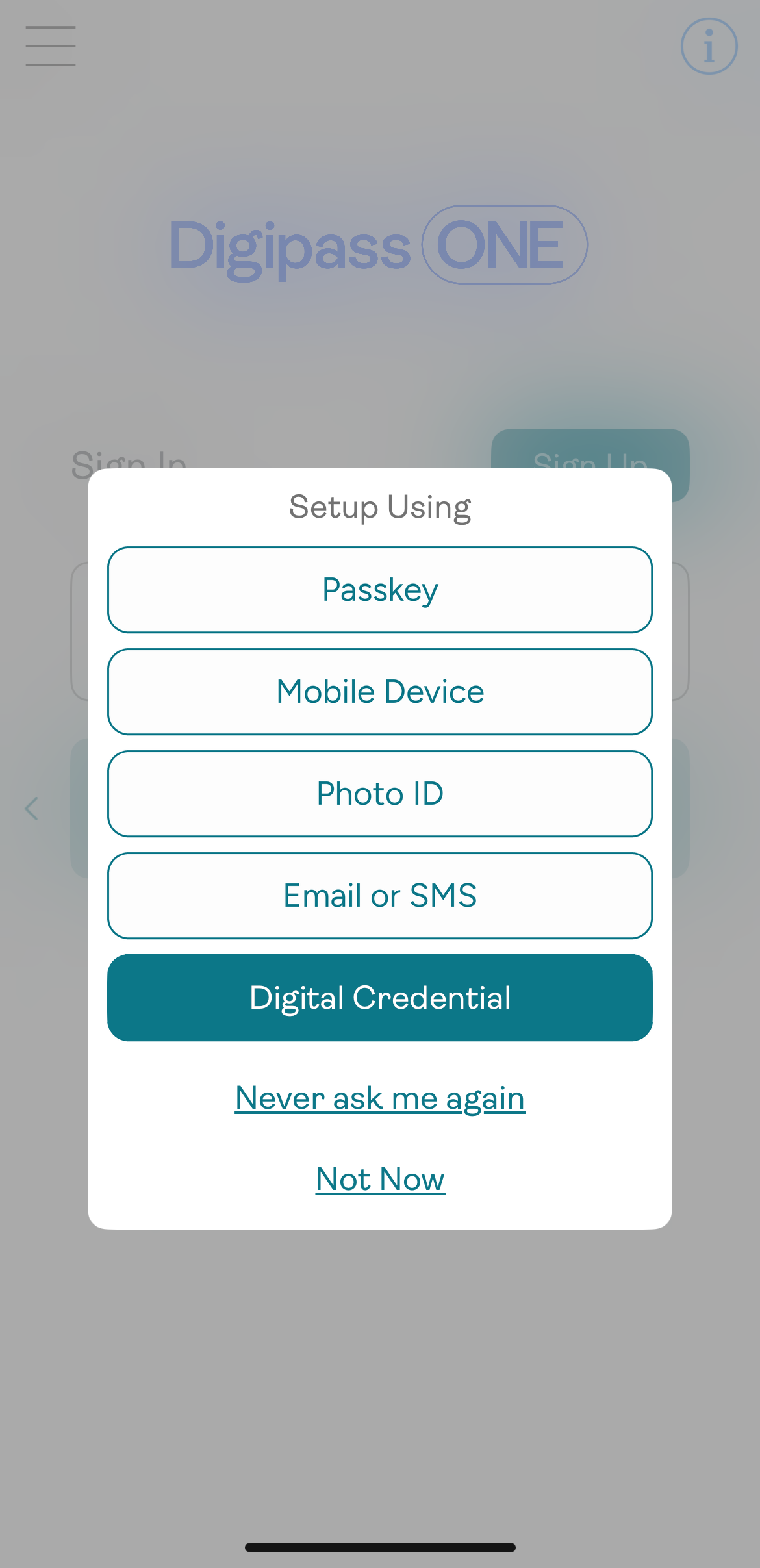
Click Not Now if you are asked to set up FIDO Auth, Mobile Device, Email or SMS.
On the Setup dialog, click Digital Credential.
You will see a dialog asking, Are you ready to invoke your Identity Wallet? Click Next to confirm.

You will be asked to enter a passcode to access OneSpan Wallet.
You will see the notification, Credential offer received, along with the credential code. Click Receive.
If this is the first time you created a digital credential, there should be No credentials listed at the bottom of the screen.

You should now see the Add credential dialog, which shows the new credential and the metadata that will be shared during authentication. Click Confirm.

You should see a Credential added notification, and the credential should be visible at the bottom of the screen.

Navigate back, or switch to the iOS Tutorial App. You should see the new credential at the bottom of the Register screen.

Login with a digital credential
First make sure that you have signed out of the iOS Tutorial App.
Next, login with your username and click Next.
You will see an option to Sign in with Digital Credential, click on it.

You will see a dialog asking, Are you ready to invoke your Identity Wallet? Click Next to confirm.

You may be asked to enter your passcode or authenticate through other means.
You should see a notification for Presentation request received, and the credential will be displayed at the bottom of the screen. Click Present.

Press Confirm on the Share credentials dialog.
If you have more that one credential, you will be asked to select one before clicking Confirm.

You will see the notification, Presentation sent.
Navigate or switch back to the iOS Tutorial App. You should see a Welcome message with your login name on the Register page.

Authenticate a transaction with a digital credential
Open the Tutorial app menu and click Transaction.

On the Transaction screen, enter an amount in the field provided and click Next.

Click Authorize to proceed with the transaction.

On the Authorize screen, click Authorize.
You will see a dialog asking, Are you ready to invoke your Identity Wallet? Click Next to confirm.

If requested, enter your passcode or Face ID if it is enabled in the Wallet.
You will see the notification, Presentation request received, with the credential displayed at the bottom of the screen. Click Present.

Verify the transaction details and click Confirm on the Share credentials dialog.
If you have more that one credential, you will be asked to select one before clicking Confirm.

You will see the notification, Presentation sent.
Navigate or switch back to the iOS Tutorial App. You should see a Transaction succeeded message on the Transaction page.

Remove a digital credential from the iOS tutorial app
Open the iOS Tutorial app and navigate to the Register page.
Your credential(s) should be listed at the bottom of the screen. Click on the trash can to delete it from the app.

You will be asked to confirm the credential’s removal. Click Yes.

The Register page will no longer display the credential.

Removing a digital credential from the Tutorial app will not remove it from OneSpan Wallet.