Requirements
Component | Requirement |
|---|---|
IDE | Eclipse IDE for Enterprise Java and Web Developers |
Device |
|
Data wallet | OneSpan Wallet |
Other |
|
The Web Tutorial App is included with the DigipassONE App SDK for Web. It is a simple client application that will teach you how to implement digital credentials by:
Building and deploying a client application.
Connecting and testing a client application.
Below are detailed, step-by-step guides to help you get started.
Install OneSpan Wallet
iOS users
Refer to Implement digital credentials with the iOS Tutorial App for instructions on how to install the wallet in your iOS device.
Android users
Refer to Implement digital credentials with the Android Tutorial App for instructions on how to install the wallet in your Android device.
Download the Web SDK
Login to the DigipassONE portal.
Locate the Software Downloads tile and click on Web SDK.
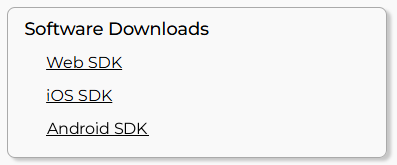
Download the zip file.
Build the Web Tutorial app
Extract the
digipassone_appsdk_web-<version>.zipfile.Open Eclipse, import project from
path_to_digipassone_appsdk_web-<version>/src/gwtutorialfolder.Edit the
JWTExternalAuthServlet.javafile and replace the values ofTENANT,KEYandISSUERconstants with the corresponding values from thejwt_configconfiguration of JWT Authentication Method plugin configured for your tenant.Edit the
/etc/hostsfile and mapnneval-tutorial.noknokeval.comto127.0.0.1.Copy the
path_to_digipassone_appsdk_web-<version>/certsfolder to a place that Tomcat can access.Edit the Tomcat’s
server.xmlconfiguration file and add or modify the<Connector>element for the HTTPS configuration:<Connector port="443" protocol="org.apache.coyote.http11.Http11NioProtocol" maxThreads="150" SSLEnabled="true"> <SSLHostConfig certificateVerification="none"> <Certificate certificateKeystoreFile="<path_to_certs>/certs/tls.noknokeval.pkcs12" certificateKeystorePassword="" certificateKeystoreType="PKCS12" sslProtocol="TLS" type="RSA" /> </SSLHostConfig> </Connector>If you are using a Tomcat server configured in the Eclipse, add the gwtutorial project to it and start it. Otherwise export gwtutorial project as war file and deploy it in Tomcat’s webapps folder and restart Tomcat.
Configure the Web Tutorial app for your tenant
Navigate to https://nneval-tutorial.noknokeval.com/gwtutorial/configure page.
Change the Deployment dropdown to
cloud.Enter
https://preview.digipassone.comin the Server Host input.Enter your tenant ID in the Tenant input.
Click Apply Configuration.
Test the Web Tutorial app
Register a digital credential
On your desktop
Launch the Web Tutorial app by opening a browser and navigating to https://nneval-tutorial.noknokeval.com/gwtutorial/.
You may enter any username before clicking Next.
Make sure to enter
noknokin the Password field, then click Next.You will be prompted to set up authentication. Select Digital Credential.
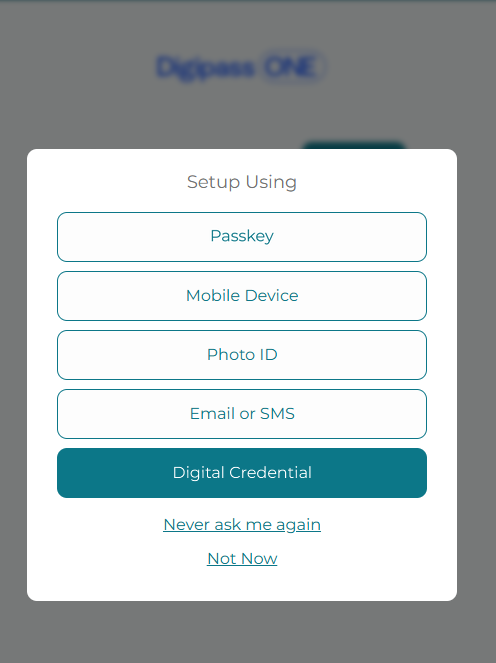
You will see a dialog asking, Are you ready to invoke your Identity Wallet? Click Next to confirm.

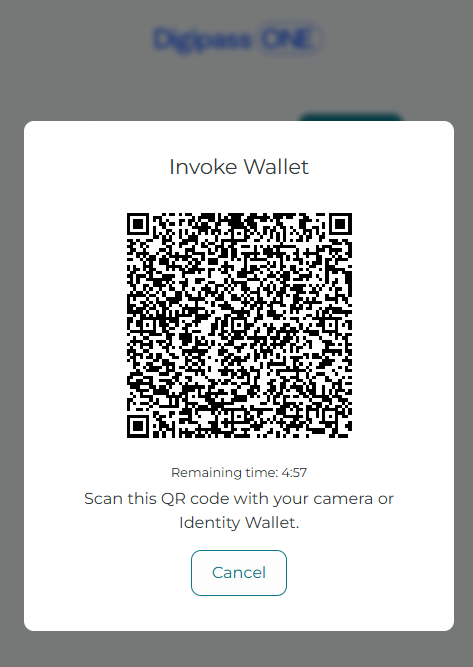
A QR code will be displayed.

On your mobile device
Using your mobile device, scan the QR code on your desktop by:
Launching OneSpan Wallet and clicking Scan QR Code
Using your device’s camera app.
You should see a new credential in the Receive section. Click Receive.
If this is the first time you created a digital credential, there should be No credentials listed at the bottom of the screen.

The Add credential screen will appear. Review the details before clicking Confirm.

The new credential will be listed at the bottom of the screen.
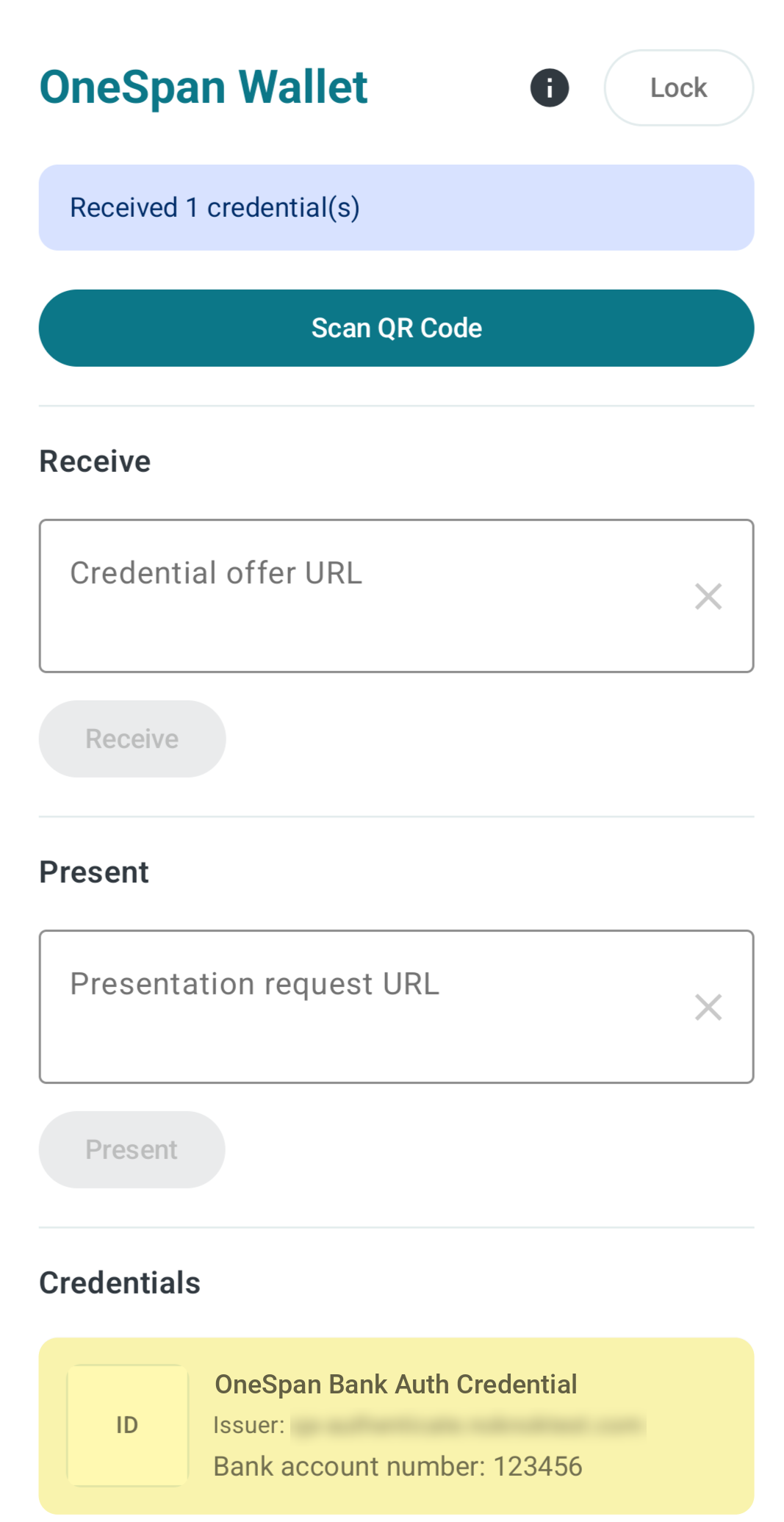
On your desktop
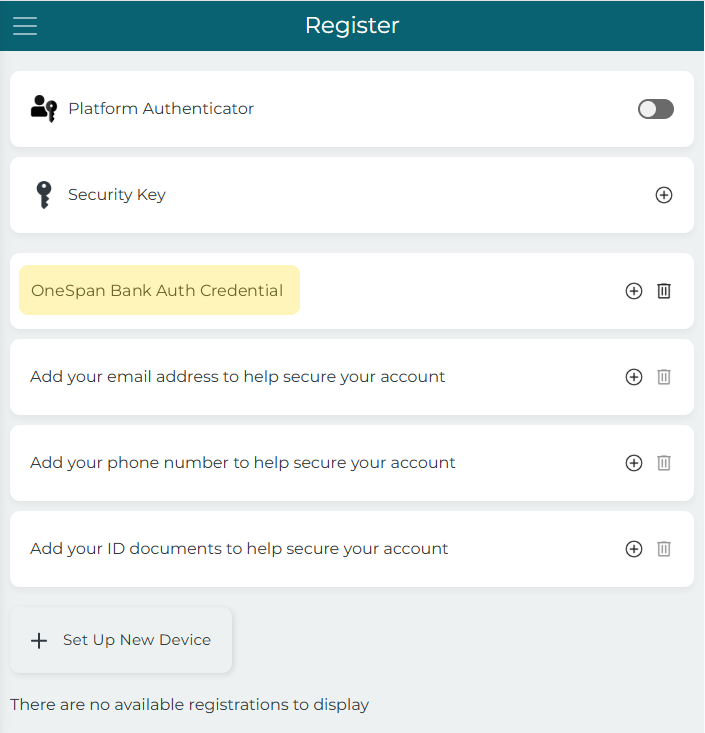
Once the credential has been received, the Web Tutorial app will display the Register page with the new credential:
Login with a digital credential
On your desktop
Make sure to log out from the Web Tutorial app.
Log back in with the username you used to register - the field may be pre-filled. Click Next.
You will see an option to Sign in with Digital Credential. Click on it.

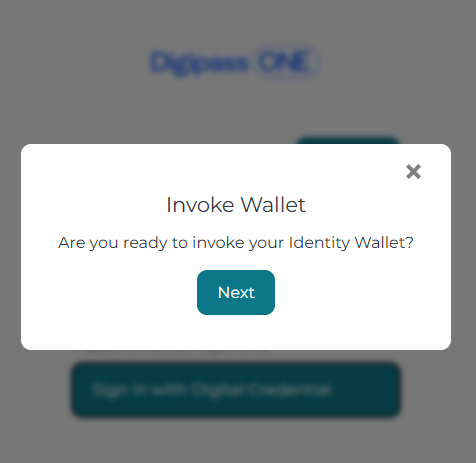
You will see a dialog asking, Are you ready to invoke your Identity Wallet? Click Next to confirm.
A dialog with QR code will be displayed.
On your mobile device
Using your mobile device, scan the QR code on your desktop by:
Launching OneSpan Wallet and clicking Scan QR Code
Using your device’s camera app.
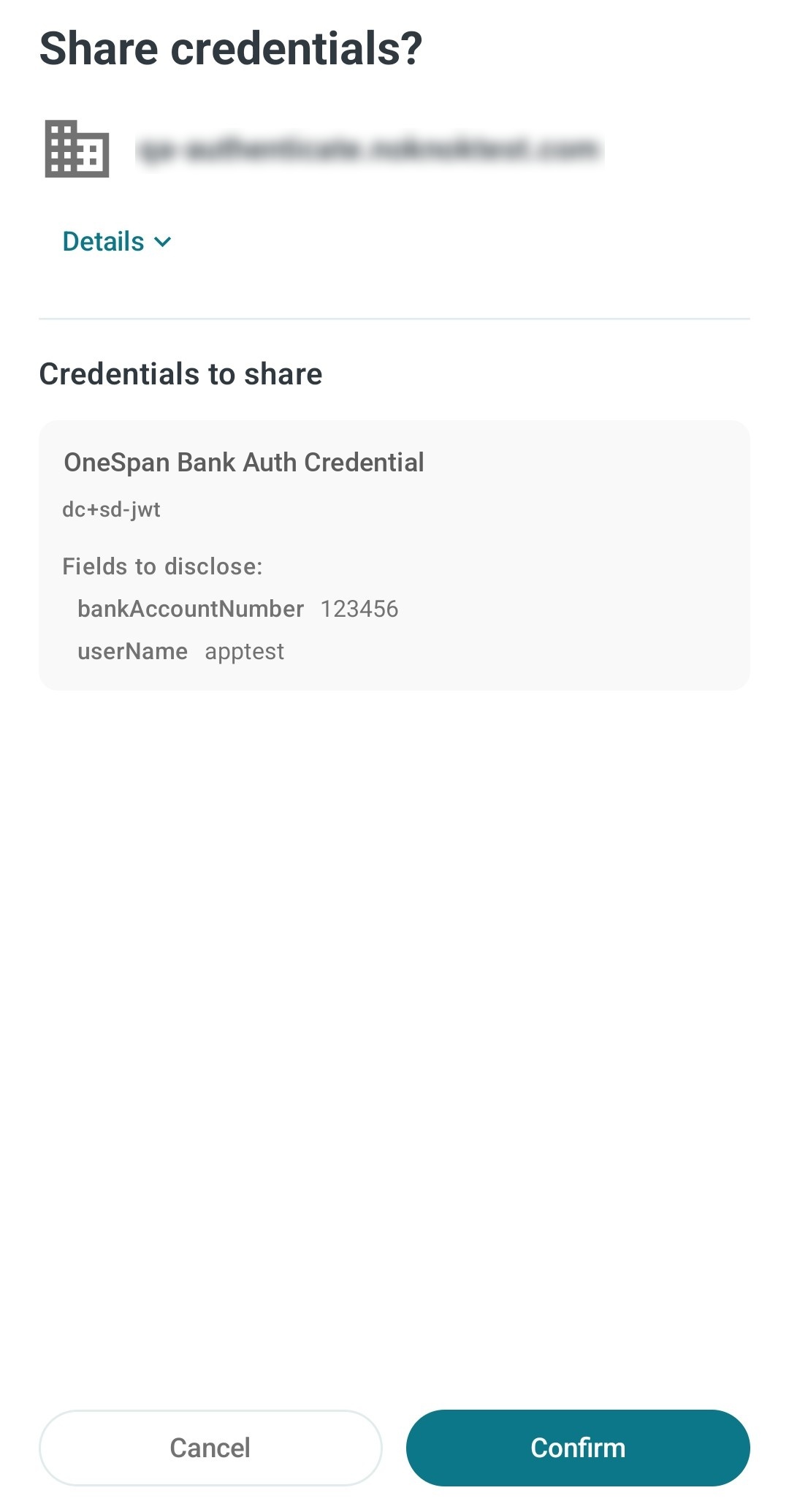
You will see the request to present a credential in the Present section. Click Present.
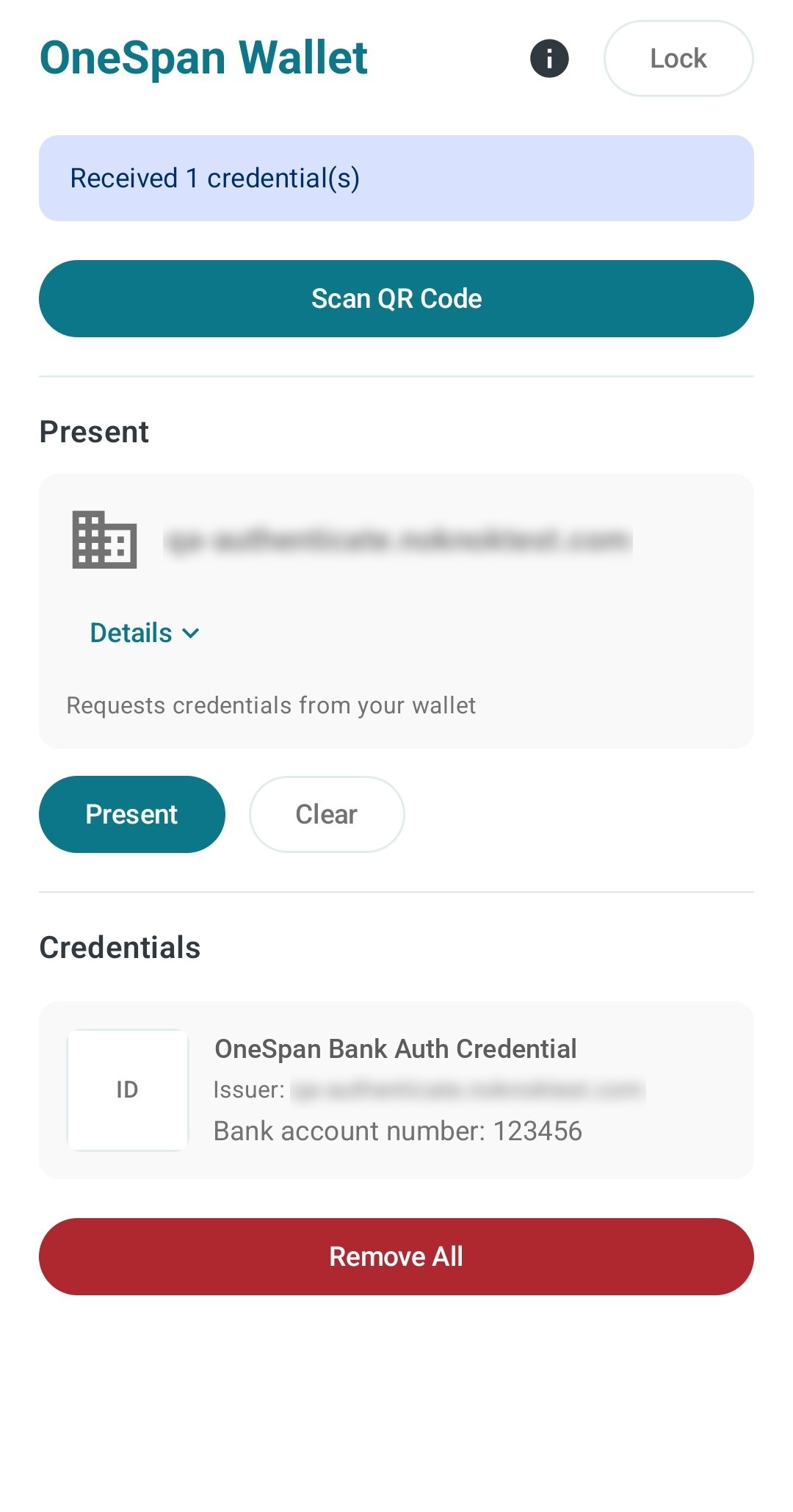
You will be asked to Share Credentials? Review the information provided before clicking Confirm.
If you have more than one credential, select the one that you wish to use.
On your desktop
Once the credential has been received, the Web Tutorial app will display the Register page on your desktop browser where you can complete the authentication process.
Authenticate a transaction with a digital credential
Navigate to the Transaction page in the Web Tutorial app.
On the Transaction page enter a transaction amount and click Next.
Click Authorize on the confirmation dialog:
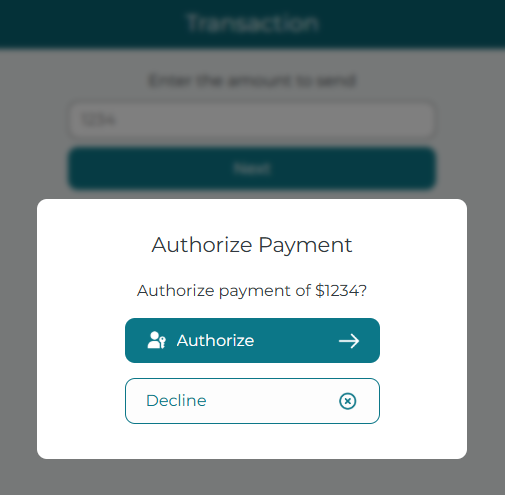
A confirmation dialog will be displayed, click Next.
A dialog with QR code will be displayed. Open the OneSpan wallet on your mobile device, click Scan QR Code and scan the QR code (or scan it with your device’s camera app).
You will see the request to present a credential in the Present section. Click Present.
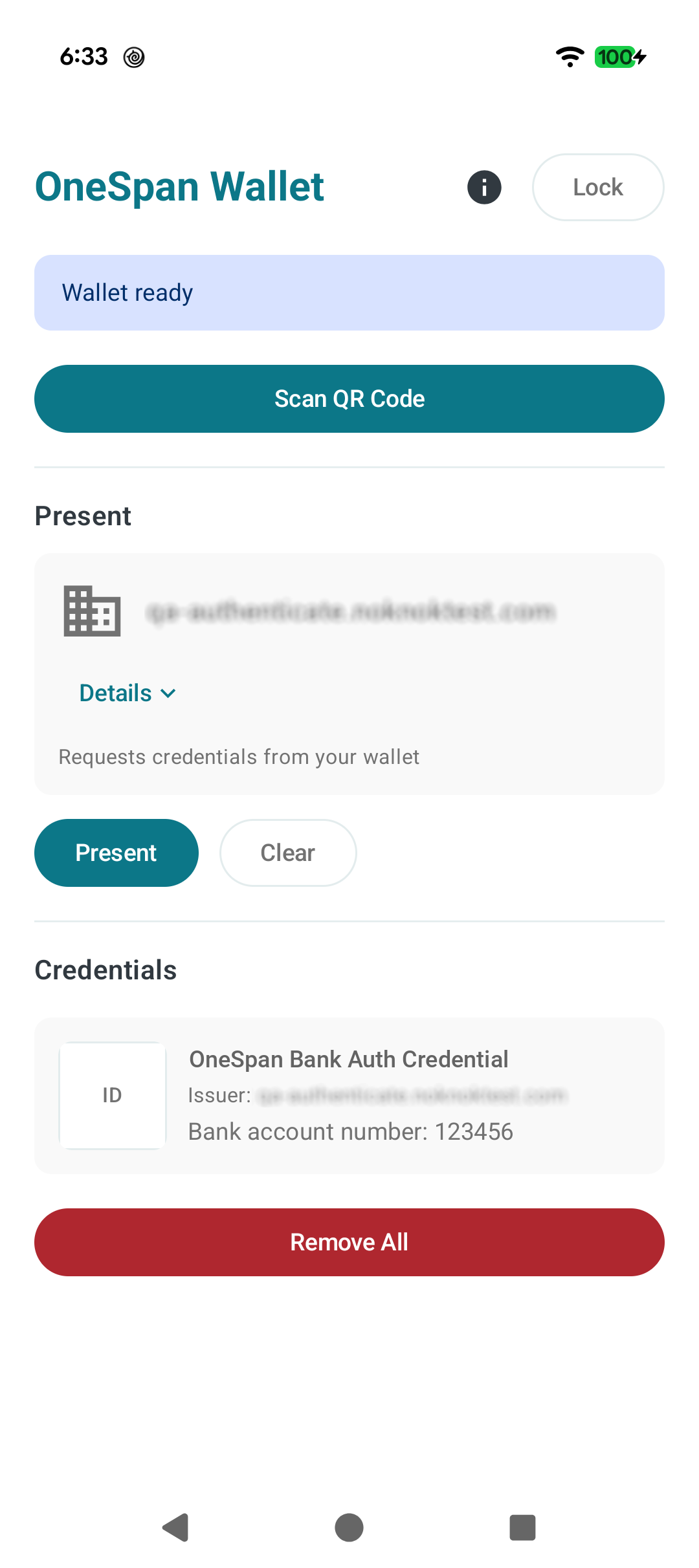
Verify the transaction details and click Confirm on the “Share credentials?” confirmation screen.

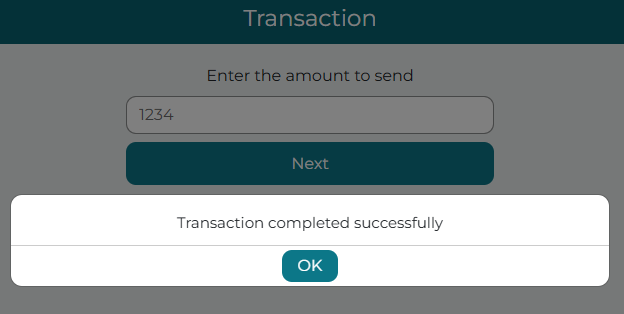
The transaction will be completed and the Web Tutorial app will display the confirmation
Remove a digital credential from the Web Tutorial app
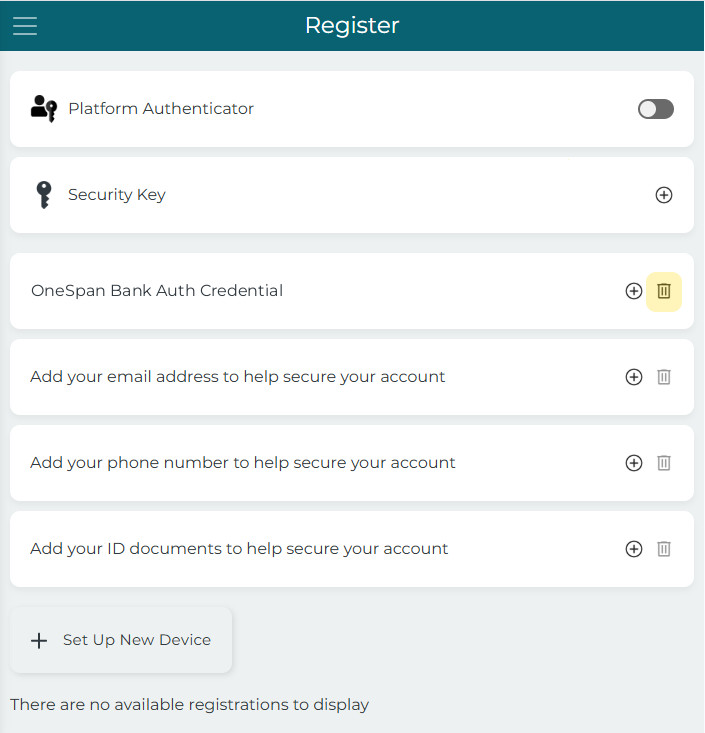
Navigate to the Register page in the Web Tutorial app.
Click the trash can button in the digital credential tile:
Click Yes on the confirmation dialog:
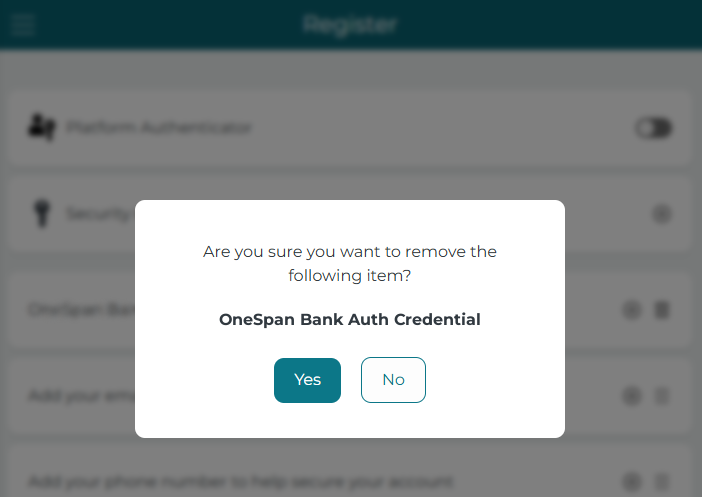
The credential will be deleted.
Removing a digital credential from the Web Tutorial app will not remove it from the OneSpan Wallet.
Opening the Web Tutorial app in a mobile browser
If you wish to run the Web Tutorial app on a local computer — e.g., with a Tomcat server in Eclipse — and access it with a mobile browser, you will need to:
run a proxy server on your computer
configure Wi-Fi settings on the mobile device to use the proxy server
ensure that both devices are on the same network.
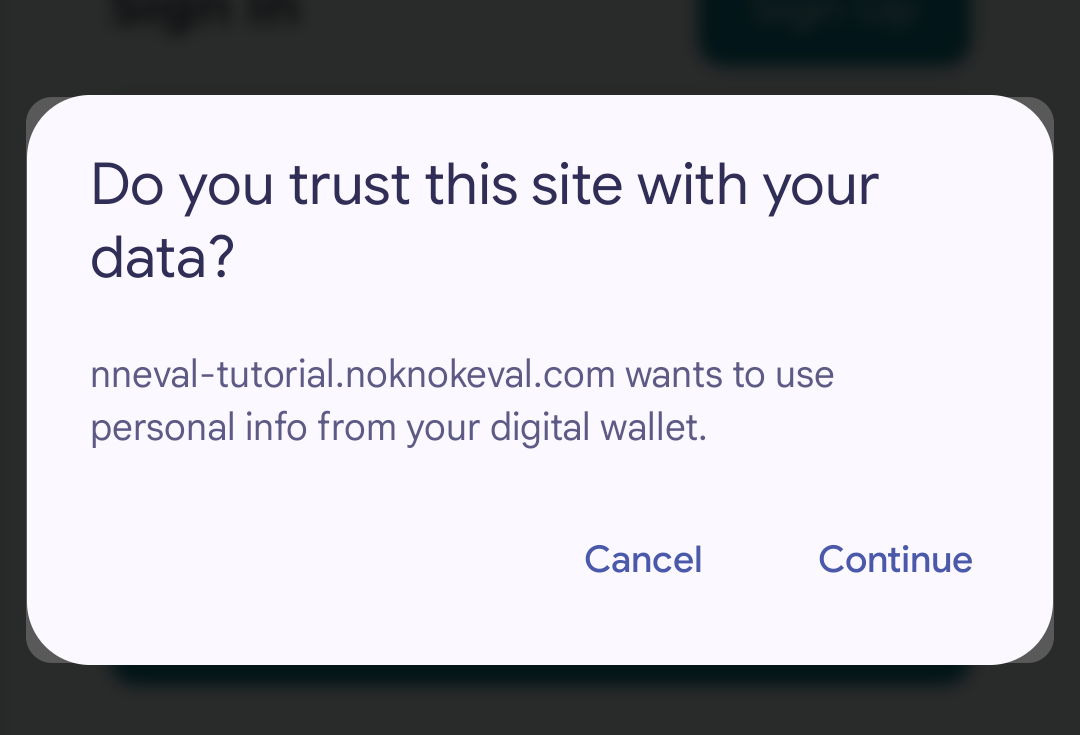
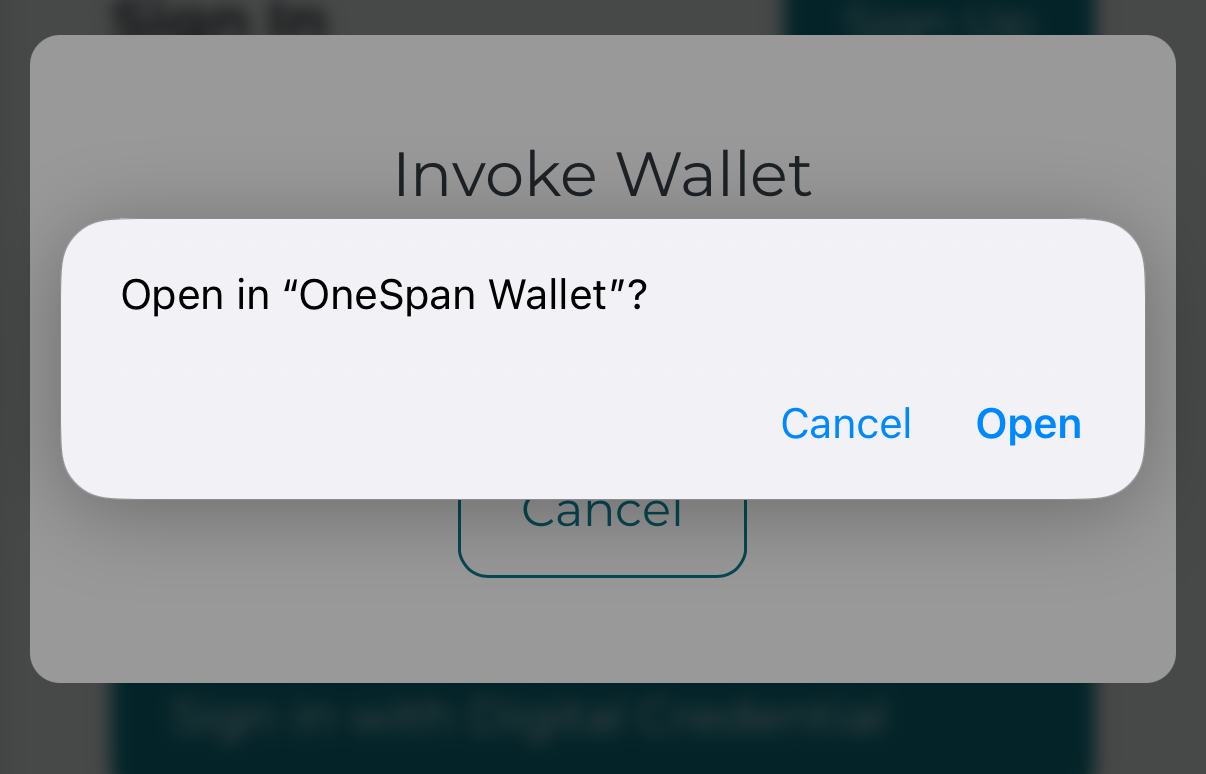
When using a mobile browser, if you click Next on the Invoke Wallet dialog, you will be asked to allow access to the information in your digital wallet instead of being presented with a QR code.
iOS confirmation screen
Android confirmation screen