Digipass FX2 is designed to protect users against phishing and social engineering attacks through strong, phishing-resistant authentication.
It combines FIDO2-certified authentication with Cronto technology to enable the following:
Passwordless login
Phishing-resistant transaction signing
"What You See Is What You Sign" (WYSIWYS) verification
Device overview
The images depicted are for illustrative purposes only. The actual device and the content shown on the authenticator may vary.
Authenticator front
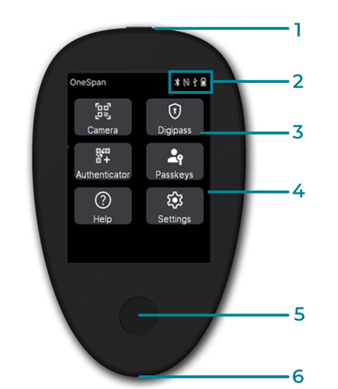
1: Power button
2: Status icons for Bluetooth, NFC, USB, and battery
3: Application buttons
4: Touch display
5: Fingerprint sensor
6: USB-C port
Authenticator back
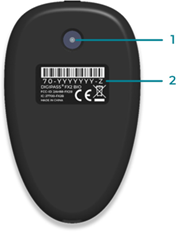
1: Camera
2: Regulatory identifiers
PIN protection
The Digipass FX2 authenticator uses fingerprint verification as the primary method of user verification, with PIN as a fallback.
The PIN is composed of decimal digits and must comply with the following rules:
Minimum length. 4 digits
Maximum length. 10 digits
Security behavior
After 3 consecutive incorrect PIN attempts, the authenticator must be powered off and restarted before a new PIN attempt can be made. After 8 consecutive incorrect PIN attempts, the authenticator is locked.
When locked, the authenticator must be reset, which does the following:
It deletes all data (credentials, accounts, fingerprint, PIN).
It resets the authenticator to factory settings.
Fingerprint sensor
The fingerprint sensor is used to verify the user. The sensor is a 360° sensor and recognizes a fingerprint in any orientation. The following two verification modes are supported:
Touch only. Any finger can be used. This mode confirms the user’s presence, but not the user’s identity. The authenticator prompts the user to touch the fingerprint sensor (with any finger).
For NFC-based interactions, the confirmation method may vary depending on the service. You may be asked to either tap the authenticator against the NFC reader or touch the fingerprint sensor.
Verification. This mode is used to verify the user. At least one fingerprint must be enrolled. You need to present an enrolled fingerprint. The authenticator will show a message accordingly.
Indicator | Description |
|---|---|
| Prompt to present fingerprint |
| Fingerprint matching successful |
| Fingerprint matching failed |
| Fingerprint detected |


Security behavior
After 5 consecutive failed fingerprint attempts (without a correct PIN entry), fingerprint verification is temporarily disabled.
While disabled, PIN verification is required.
Reset behavior
A correct PIN entry resets both the PIN and the fingerprint error counters.
A successful fingerprint match resets only the fingerprint error counter.
By default, fingerprint verification is used when fingerprints are enrolled. At any time, you can choose to switch to PIN verification.
Fingerprint enrollment
Fingerprint enrollment stores a fingerprint template (a mathematical representation of a fingerprint) on the device (see Enroll fingerprints).
Requirements:
A PIN must be configured before enrolling fingerprints.
Capabilities:
Up to 5 fingerprint templates can be stored.
If the maximum of fingerprint templates is reached:
New enrollment is blocked.
Existing fingerprints must be deleted to free space (see Delete enrolled fingerprints).
Charge the battery
To recharge the authenticator, connect it using a USB cable to a USB port of a PC, mobile device, or wall charger.
For safety, charging is automatically disabled if the device’s temperature is outside the operating range (0°C–45°C). This condition is indicated by a red battery icon with a pause
symbol on the device.