To configure the auditing settings of OneSpan Authentication Server, log on to the OneSpan Authentication Server Appliance Configuration Tool and select Authentication Server > Audit Settings.
Via the audit settings, you can do the following:
Specify the message type that is sent to the syslog.
Enable the Remote Audit Viewer and its associated settings.
Enable SSL connections for the Audit Viewer, select the level of the used SSL cipher suite, download a server certificate, and set a password for the certificate.
Configure the verification certification authority (CA) certificate file for the SSL client certificate and associated settings.
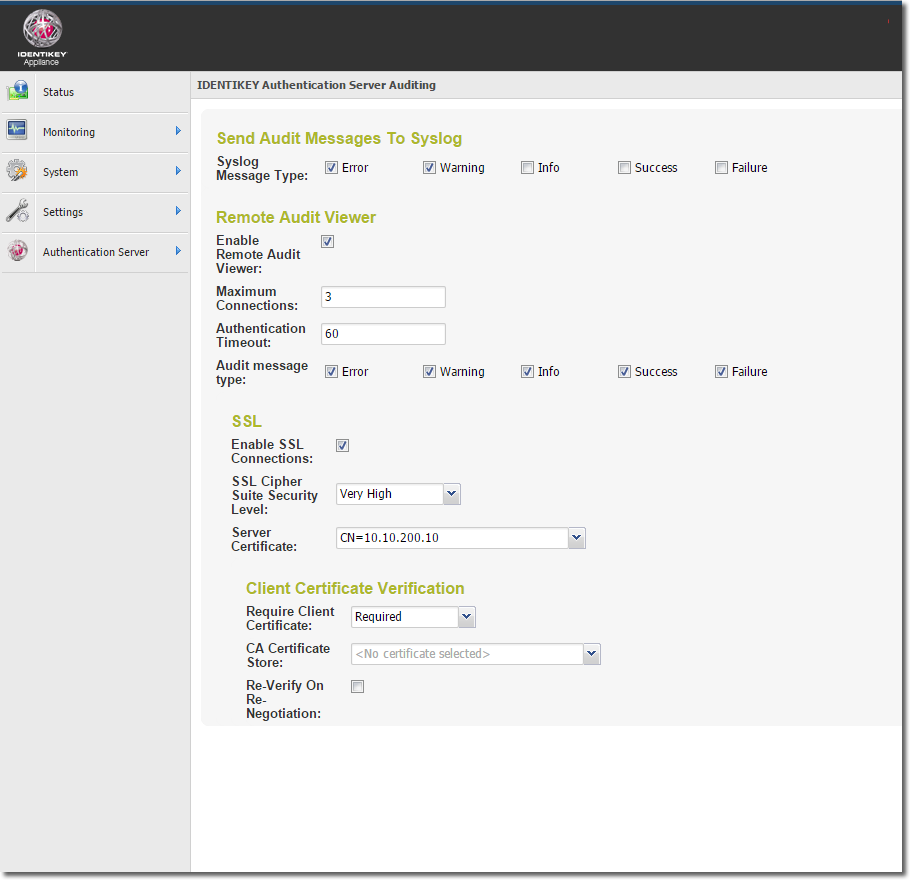
Figure: Configuration Tool – Configuring OneSpan Authentication Server auditing settings
The following outlines the audit settings of OneSpan Authentication Server. For a detailed option reference, see Audit settings.
Send Audit Messages to Syslog
These settings allow you to select the message types to be sent to the syslog. Available audit message types are:
Error
Warning
Info
Success
Failure
Remote Audit Viewer
These settings allow you to enable and configure the remote Audit Viewer:
The maximum number of Audit Viewer clients connected to OneSpan Authentication Server at the same time.
The maximum period of time in seconds until an authentication times out.
The types of audit messages to be sent.
If you want to secure the audit connection with SSL you can do so by enabling SSL connections for the Audit Viewer. This means that your browser will use an SSL-secured connection via HTTPS.
SSL
These settings allow you to configure the SSL cipher suite security level and server certificates:
Select the required cipher suite security level for the Audit Viewer. OneSpan Authentication Server supports SSL cipher suites defined under the security levels Very High, High, Medium, and Low.
Select a valid certificate previously created or imported using the Certificate Management tab (see Using server certificates).
Client Certificate Verification
You can configure the following here:
Set OneSpan Authentication Server to require a client certificate whenever a client attempts a connection.
Select the CA certificate used to authenticate the clients from all valid and trusted CA certificates imported using the Certificate Management tab (see Using CA certificates for client verification).
Configure OneSpan Authentication Server to perform an SSL handshake each time the Audit Viewer is re-connected to OneSpan Authentication Server. Enabling this option may incur a performance penalty, thus this option should only be enabled if absolutely necessary.