OneSpan Authentication Server Appliance trace files contain debugging and troubleshooting information. The content can help OneSpan support engineers and experienced end-customers to troubleshoot specific issues.
Tracing tasks include the following:
Configuring tracing for:
OneSpan Authentication Server (see Configuring tracing for OneSpan Authentication Server)
Message Delivery Component (MDC) (see Configuring tracing for Message Delivery Component (MDC))
LDAP User Synchronization (see Configuring tracing for LDAP User Synchronization)
Downloading and deleting trace files (see Managing trace files).
Enabling and configuring log rotation configures automatic cleanup for OneSpan Authentication Server and Message Delivery Component (MDC) trace files. LDAP trace files are not deleted automatically and therefore need to be deleted manually.
Configuring tracing for OneSpan Authentication Server
OneSpan Authentication Server trace files provide information about OneSpan Authentication Server trace events and are available via the OneSpan Authentication Server Appliance Configuration Tool.
To configure tracing for OneSpan Authentication Server
Sign in to the OneSpan Authentication Server Appliance Configuration Tool.
Select Authentication Server > Tracing Settings.
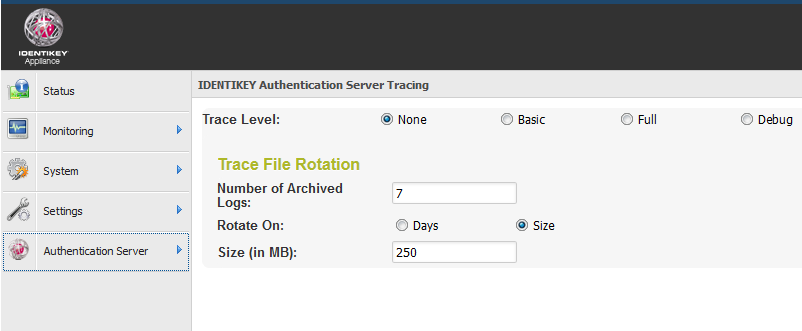
Figure: Configuring tracing for OneSpan Authentication Server
Select the required trace level:
None disables tracing.
Basic or Full enable tracing with increasing detail levels.
Debug must only be used if instructed to do so by OneSpan customer support.
(OPTIONAL) Enable log rotation by selecting Enable Log Rotation and configure log rotation settings.
Log rotation specifies if and when new logs files are created, based on either the log file age or the log file size. For instance, if you select size and specify 50 MB, trace information will be stored in the file until a size of 50 MB is reached, after which a new file will be created. The number of archived log files specifies how many log files are kept at most, if required the oldest log file will be overridden.
Click Save.
Configuring tracing for Message Delivery Component (MDC)
Message Delivery Component (MDC) trace files provide information related to Virtual Mobile Authenticator.
To configure tracing for Message Delivery Component (MDC)
Sign in to the OneSpan Authentication Server Appliance Configuration Tool.
Select Authentication Server > Message Delivery Component.
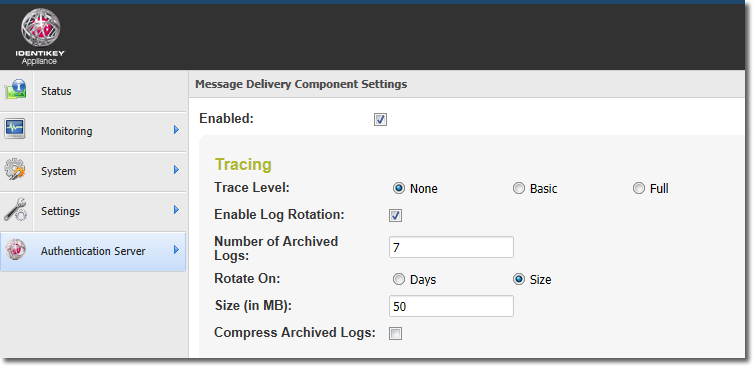
Figure: Configuring tracing for Message Delivery Component (MDC)
Select the required trace level:
None disables tracing.
Basic or Full enable tracing with increasing detail levels.
(OPTIONAL) Enable log rotation by selecting Enable Log Rotation and configure log rotation settings.
Log rotation specifies if and when new logs files are created, based on either the log file age or the log file size. For instance, If you select size and specify 50 MB, trace information will be stored in the file until a size of 50 MB is reached, after which a new file will be created. The number of archived log files specifies how many log files are kept at most, if required the oldest log file will be overridden.
Select Compress Archived Logs to save disk space.
Click Save.
Configuring tracing for LDAP user synchronization
OneSpan Authentication Server trace files provide information about LDAP user synchronization trace events and are available via the OneSpan Authentication Server Appliance Configuration Tool.
To configure tracing for LDAP user synchronization
Sign in to the OneSpan Authentication Server Appliance Configuration Tool.
Select Authentication Server > LDAP User Synchronization.
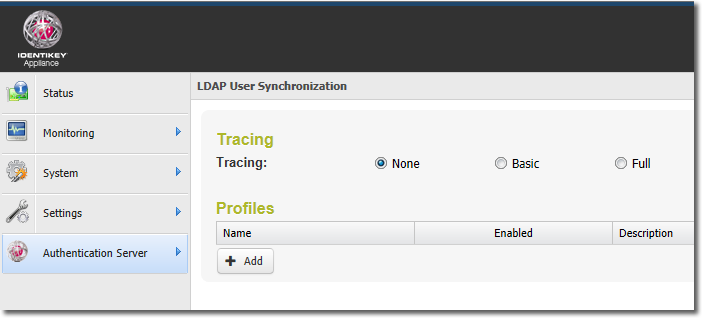
Figure: Configuring tracing for LDAP user synchronization
Select the required trace level:
None disables tracing.
Basic or Full enable tracing with increasing detail levels.
Click Save.
LDAP user synchronization trace files cannot be rotated or automatically cleaned up. While tracing is enabled, all LDAP user synchronization records are stored to a single file on the hard disk.
Managing trace files
Trace files can be viewed, downloaded, and deleted via the Configuration Tool.
Downloading trace files is useful if a support engineer needs to troubleshoot a problem, but cannot use the remote support function. In this case, the system administrator needs to activate tracing in the Configuration Tool, download the trace file, and forward it to support.
To manage trace files
Sign in to the OneSpan Authentication Server Appliance Configuration Tool.
Select Monitoring > Logfile Management.
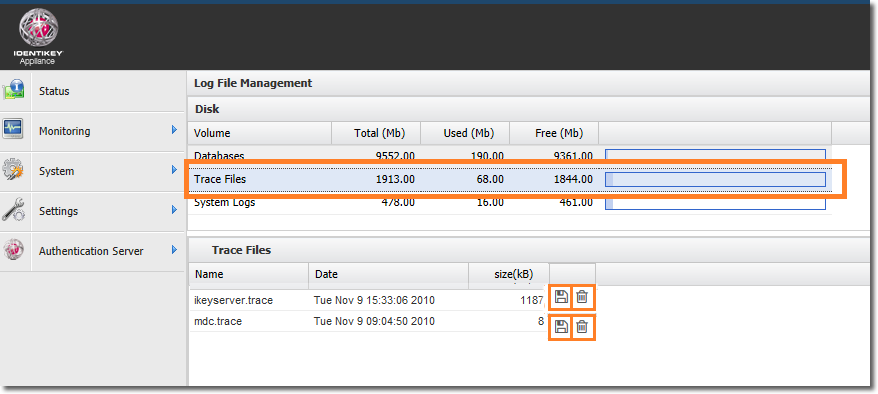
Figure: Managing trace files
Click Trace Files to get a list of all available trace files for OneSpan Authentication Server, MDC, and LDAP user synchronization in the Trace Files pane below.
Do one of the following:
If you want to download a trace file, click the disk icon.
If you want to delete a trace file, click the trash can icon.
Downloaded trace files can be viewed with a text editor.